S Mode Order Processing
We all, from time to time, have to search for an order, contract, invoice or receipt. There are a few tricks that can help you when searching for orders within GUI.
Searching for orders begins in Order Processing from the main menu.
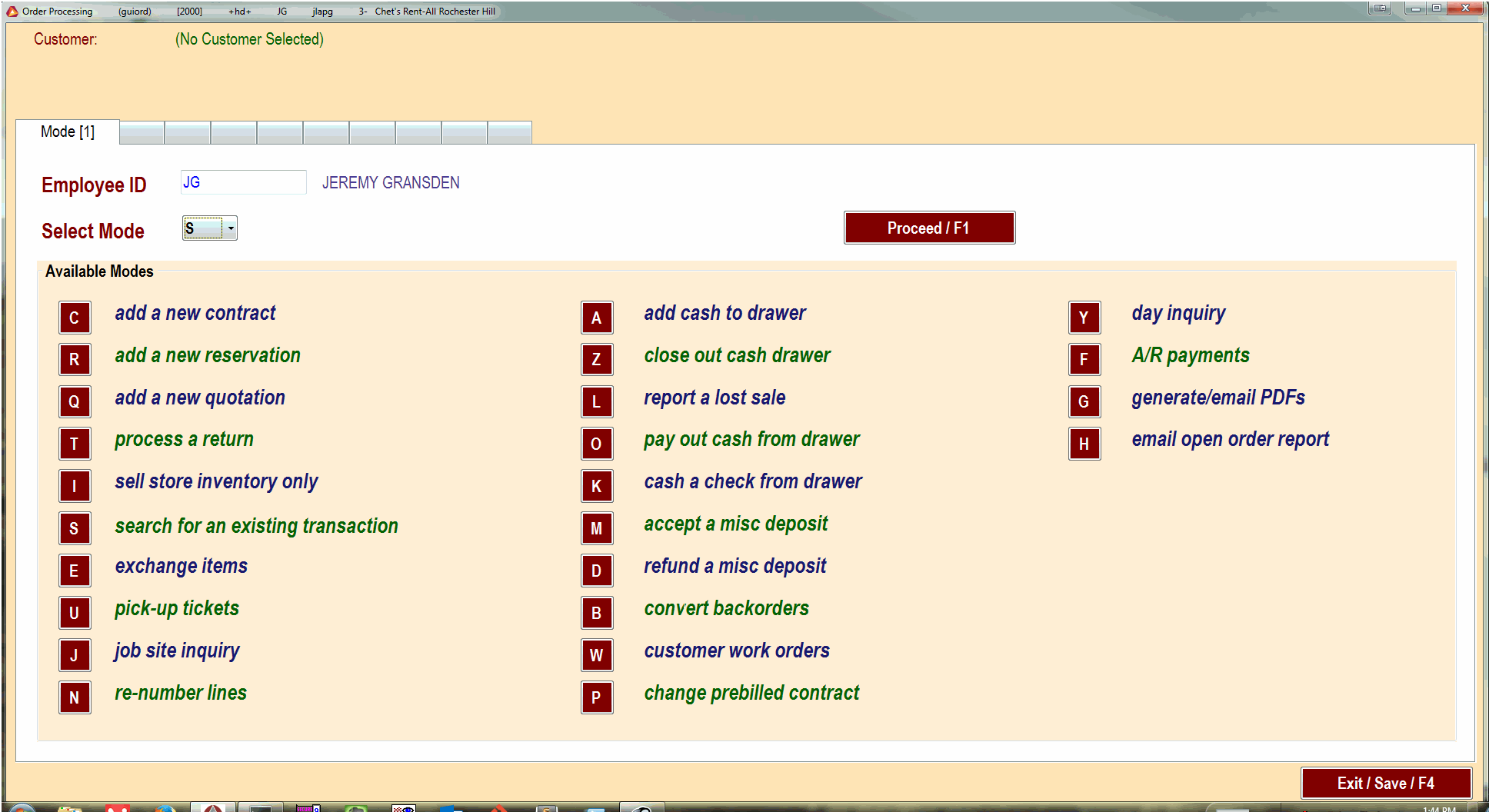
Put in your id and select “S” for the mode and press F1. This will give you a search screen where you can look for any order in the system. You can search for orders in multiple ways.
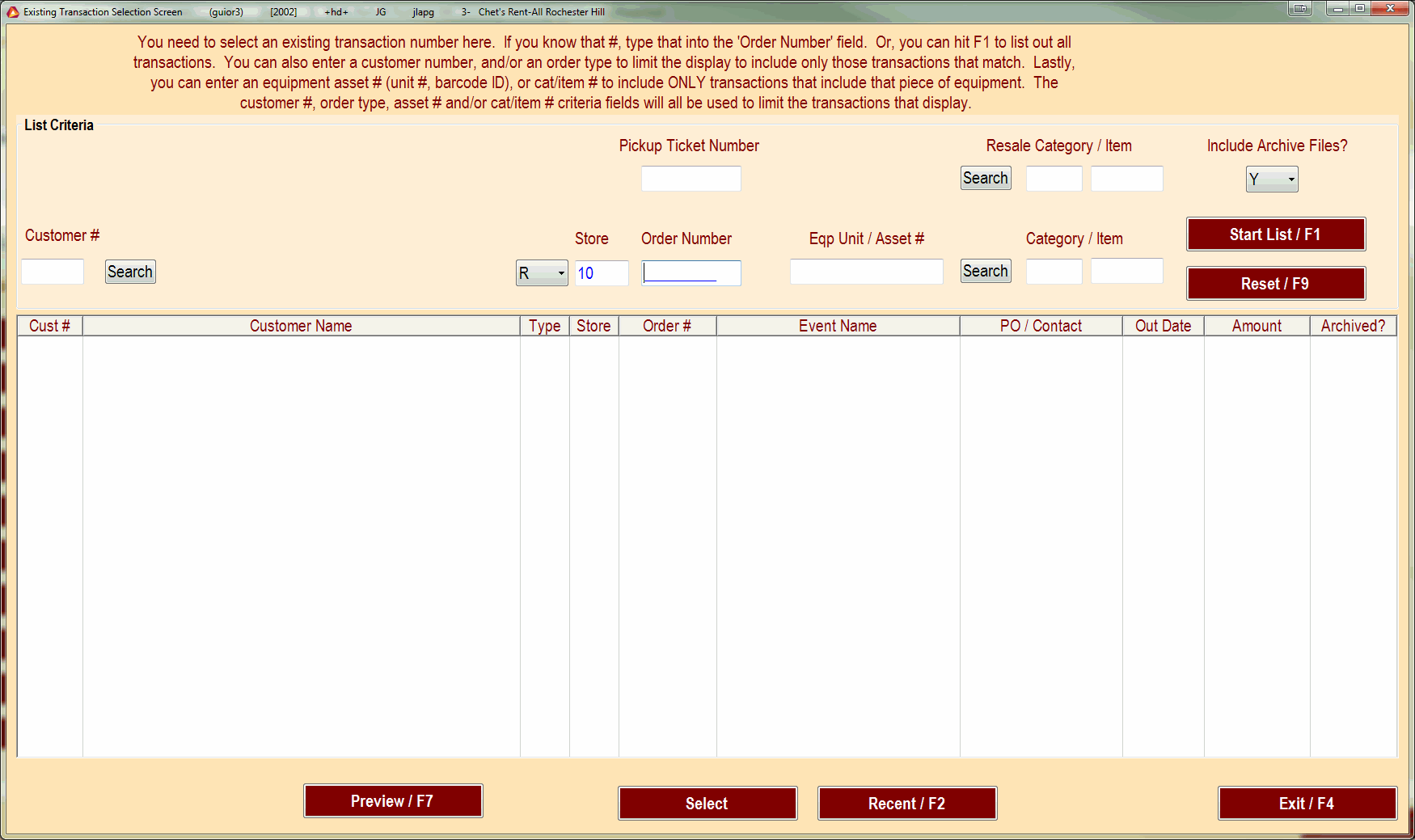
What most people will use this for is to edit existing contracts or re-print contracts and invoices. There are many more functions available to this screen but we will start with those two 1st.
Contracts and Reservations
The easiest way to look up a contract/invoice/transaction is by its Order Number. One of the great benefits of this search function over it’s legacy counter part is that you can look up orders in other stores without changing your store, though you cannot edit them. There is a drop down menu for order type. For general use make sure it is either “O” for open orders or Blank for any order.
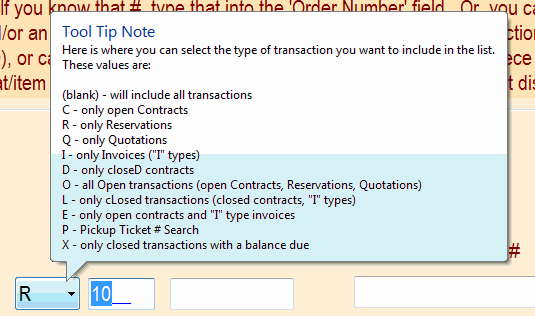
Using these type settings comes in handy when you want to list all reservations/contracts/invoices/etc. for a particular store. You can set the Type to R for reservation, set the store number to the desired store and press F1 and get a list of all reservations for that store.
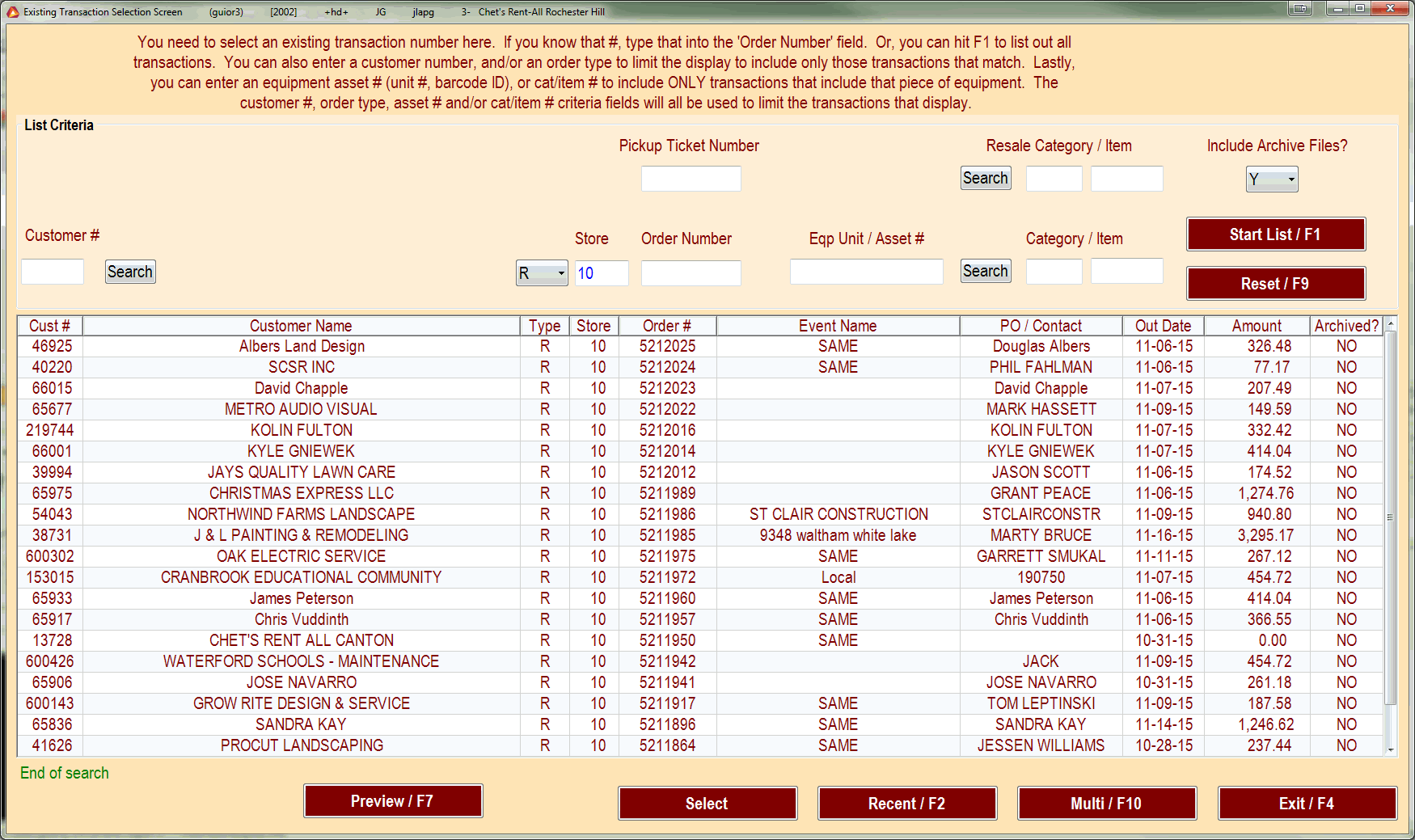
You can do this for any type of transaction. It may be helpful to look at the C and R type every morning to see what you have out and what may be going out.
Customer History
Another very useful feature is the ability to look up customer history. From the main screen input the customer number or press the Search button next to the customer number field.
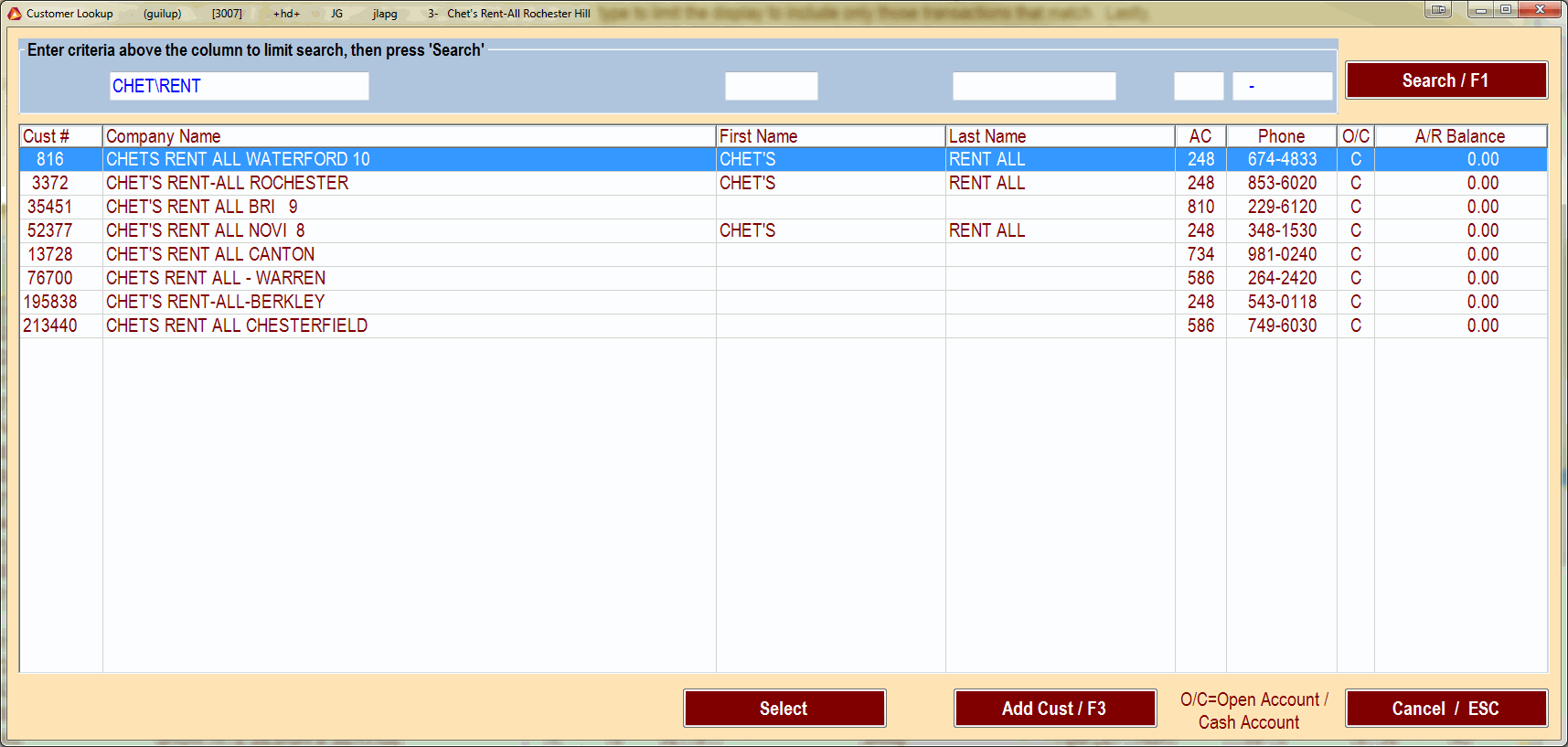
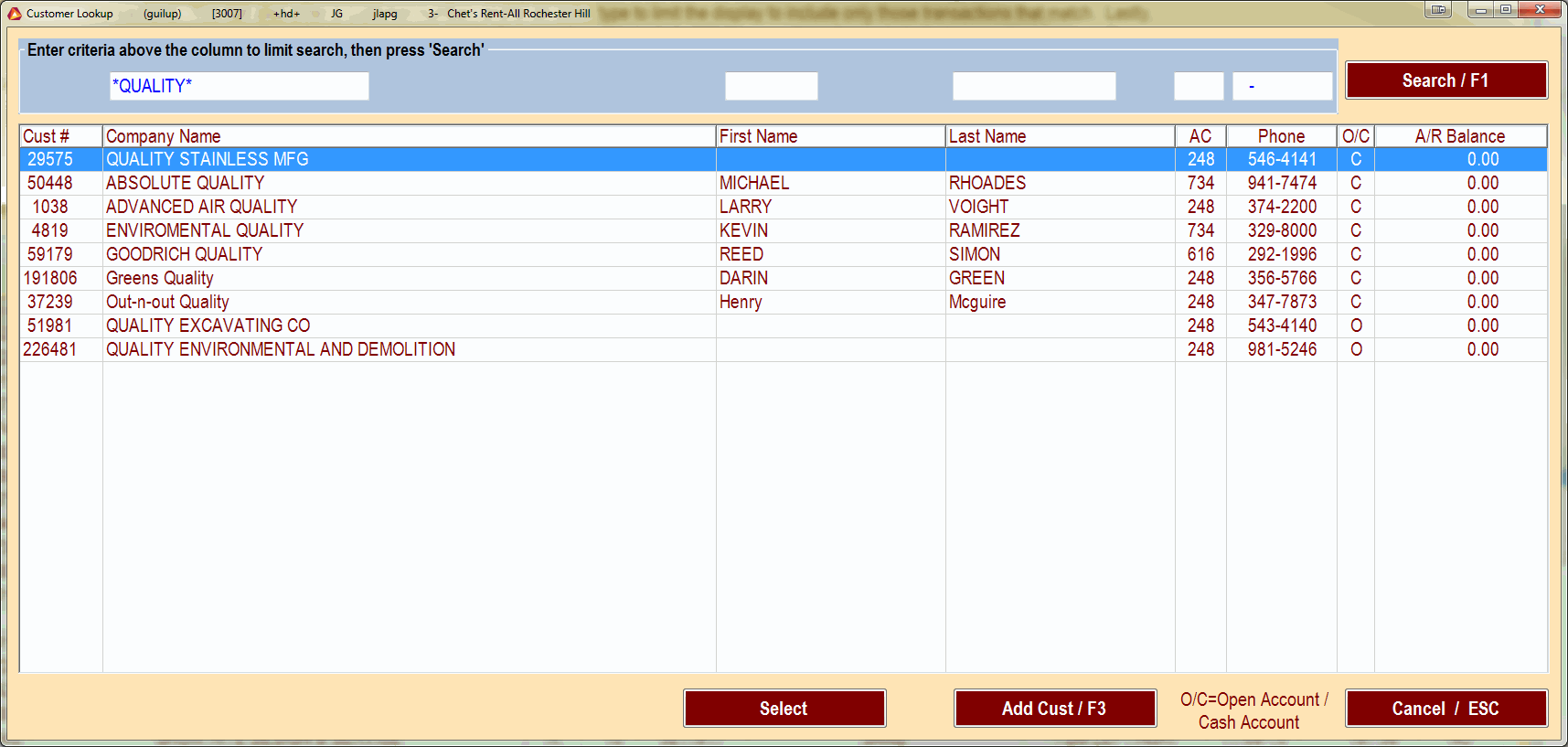
Notice that you can use the wild cards when searching. Using the \ between words searches for only customers with those 2 words in their customer names. You can use the * wild card to search for that term anywhere in a customer name. For example, if you were looking for a customer that has the word Quality somewhere in the name you could put *Quality* in the search box and press F1 and it will bring up any customer that has Quality anywhere in their name.
Note
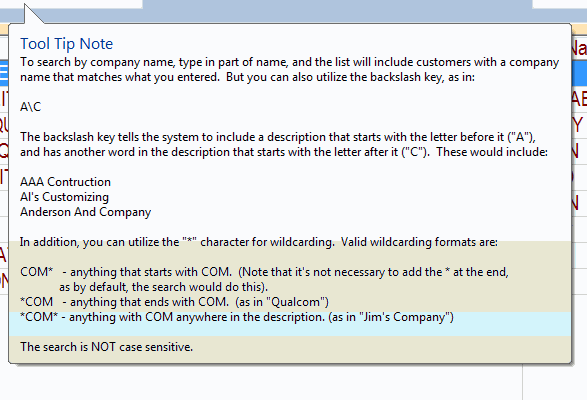
See the wild card tool tip.
Rental Items On Orders
Another feature is the ability search for orders with equipment category numbers. You can see who has out any rental item. You can look at any of the Type settings, and you can narrow it down by store.
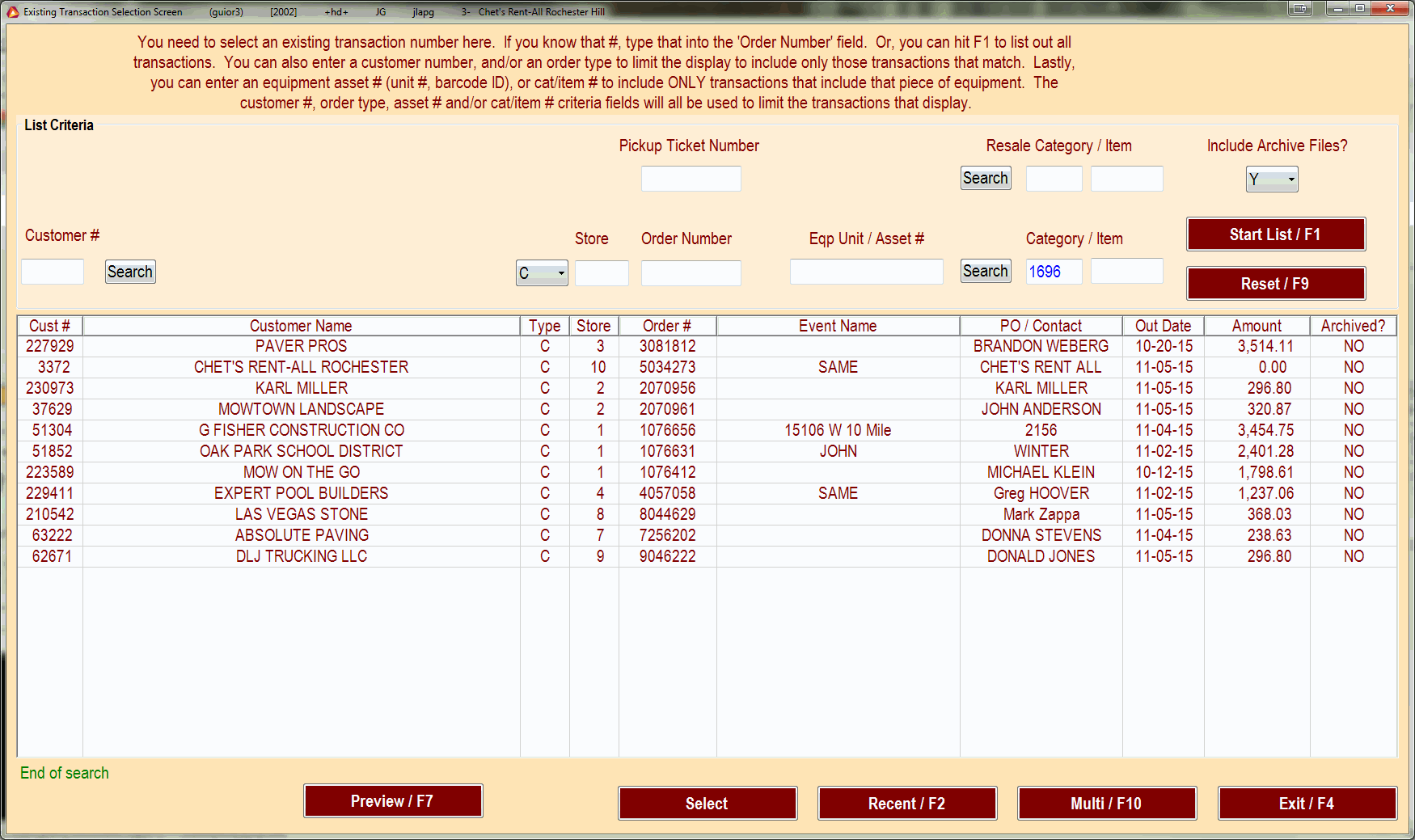
You can look up old receipts and invoices by resale cat/itm number too.