Finding Home Store Equipment
This process Replaces the current Equipment Movement Files that are periodically generated
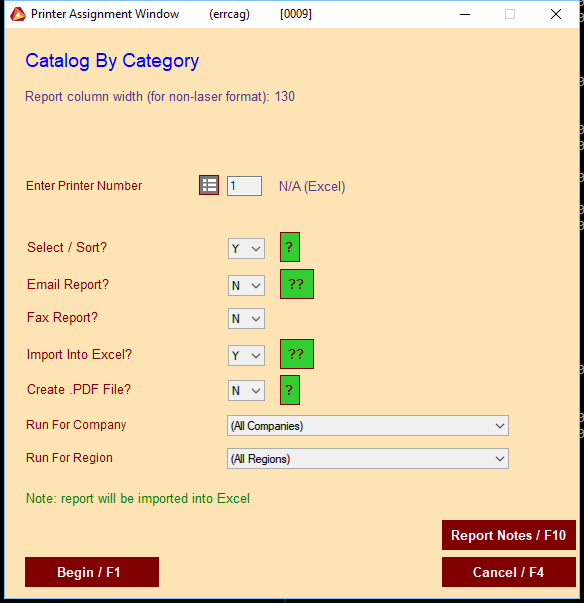
Select “Y” in the select and sort field. You can also choose to send this to excel or pdf here.
The select and sort window will open. You can enter the criteria manually or you can load the criteria and change the values. Both procedures are lited below
Manual
In the 1st field put ORGCNO, Select = in the drop down, put your store number in the next field and put the word AND in the last field. On the 2nd line; put CNO in the 1st field, the # character in the drop down, and put your store number in the next field.
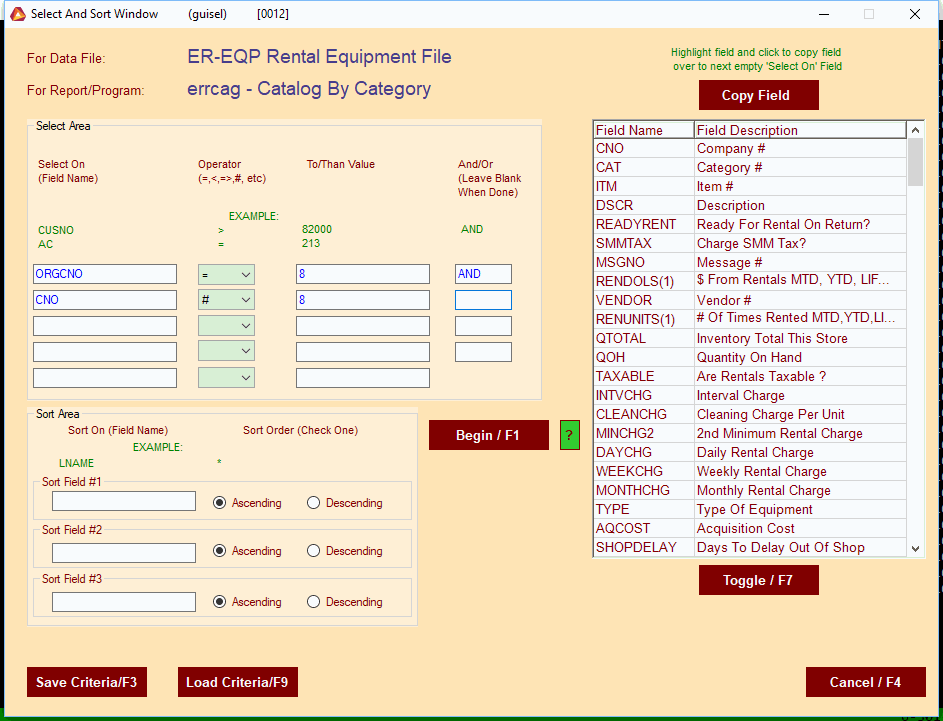
Press the begin button and the system will output all items assigned to your store that are not currently in your store to the output you selected earlier.
Saved Criteria
This is the process for loading the criteria.
On the select and sort window, press the Load Criteria/F9 button. This will load the Criteria Save / Load Window.
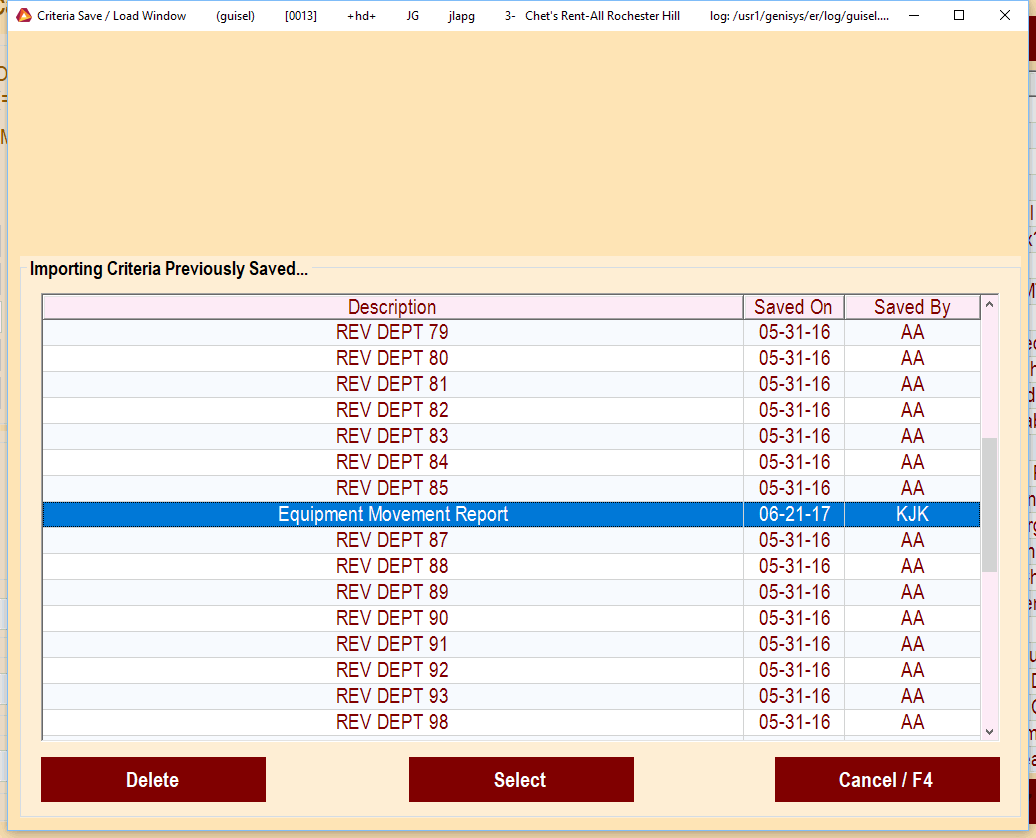
Highlignt the Equipment Movement Report line and press Select. This will bring you back to the Select and Sort Window. Now just change the store numbers to your store and press Begin / F1. The system will output the report to the output that you selected earlier.