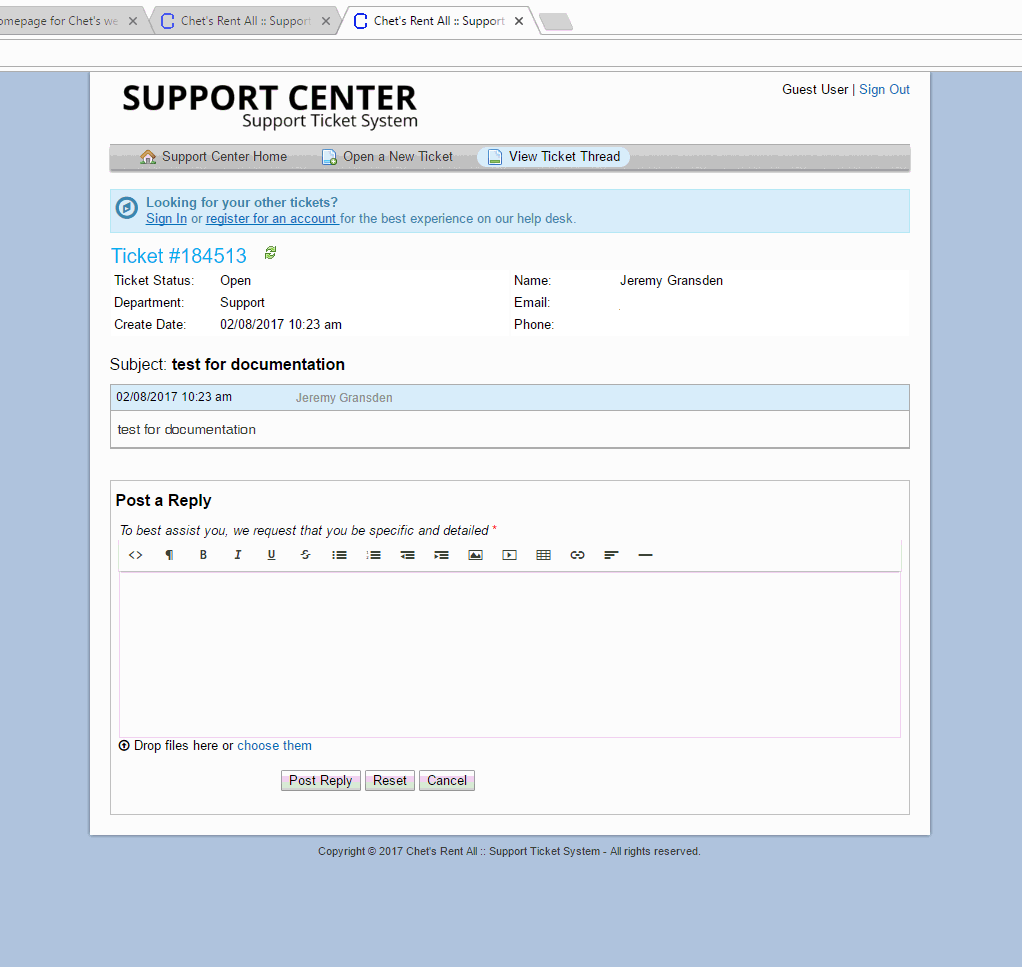
Using The Helpdesk
This guide will walk you trough the steps to using the help desk system. The help desk allows the I.T. staff an efficient way of tracking any issues that need to be addressed.
Creating A New Ticket
The help desk can be accessed off of the employee portal. If you are new to the portal please see the Employee Portal page.

You can also access it directly http://www.chetsrentall.com/helpdesk
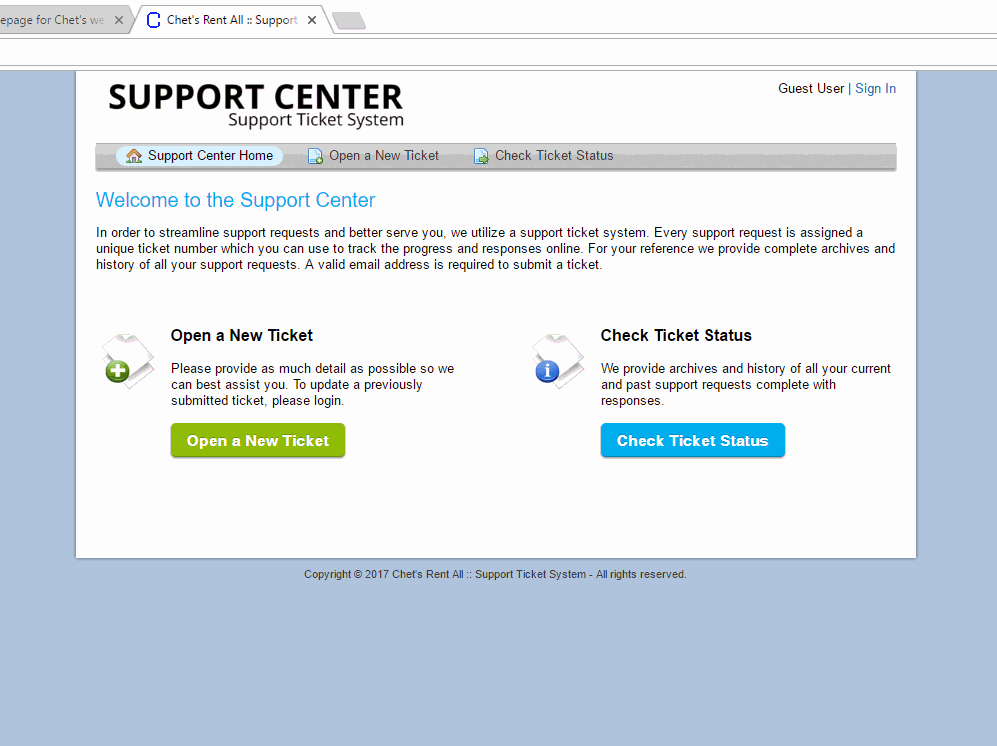
Click the link on the to open a new ticket. this will open a new ticket with some fields that will need to be filled out. The more information that you have, the more likely that your ticket will be processed quickly.
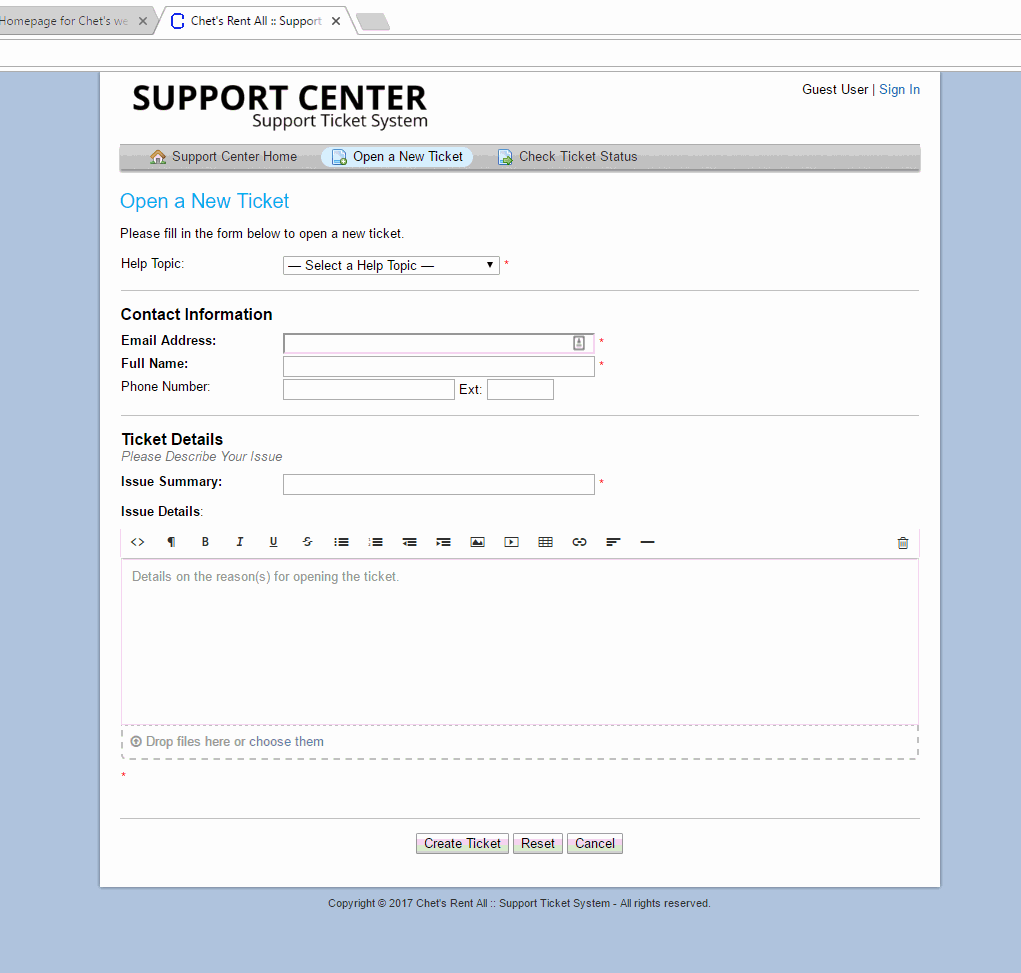
Select a help topic. If you are having a hardware issue, select Report A Problem. If you cannot access something in the Genisys system that you beleive that you should, select Report A Problem / Access Issue. If you are having issues with the computer, viruses, etc or phone issues, select Report A Problem. If you would like changes made to any of the software that we use, select Feature Request. All other inquiries go to General Inquiry.
Make sure that you put in a valid Chet’s Rent-All email address.
Put in your name
Put in the extension that you are working at or your cell # if you are working remotely.
Put in a brief summary in the Issue Summary box. This will be the subject of the email that is sent to the I.T. support staff. Make sure it is brief but descriptive.
Put the details of the issue in the Issue Details box. Be as descriptive as possible. if it is a system problem be sure to list the steps to reproduce the problem.
You can also attach any documents or pictures.
Click Create Ticket
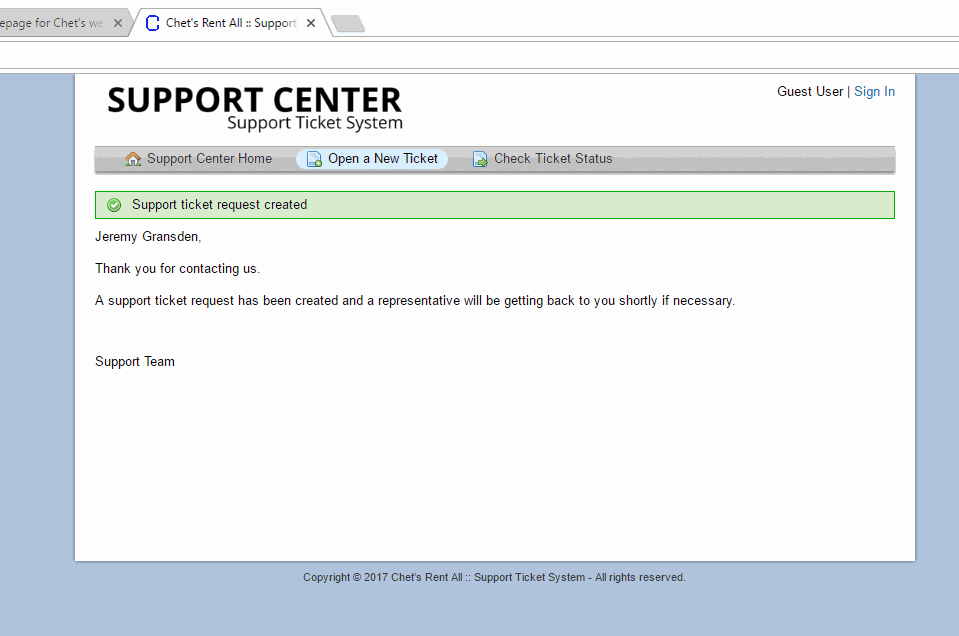
An email will be sent to the I.T. staff and they will look at the ticket and take the appropriate action.
Checking On An Open Ticket
Any time a helpdesk employee adds info to a ticket the helpdesk system will email you. If you would like to check on the status of your ticket you can follow these procedures
Click on Check Ticket Status. This will open a window where you can request a status update link
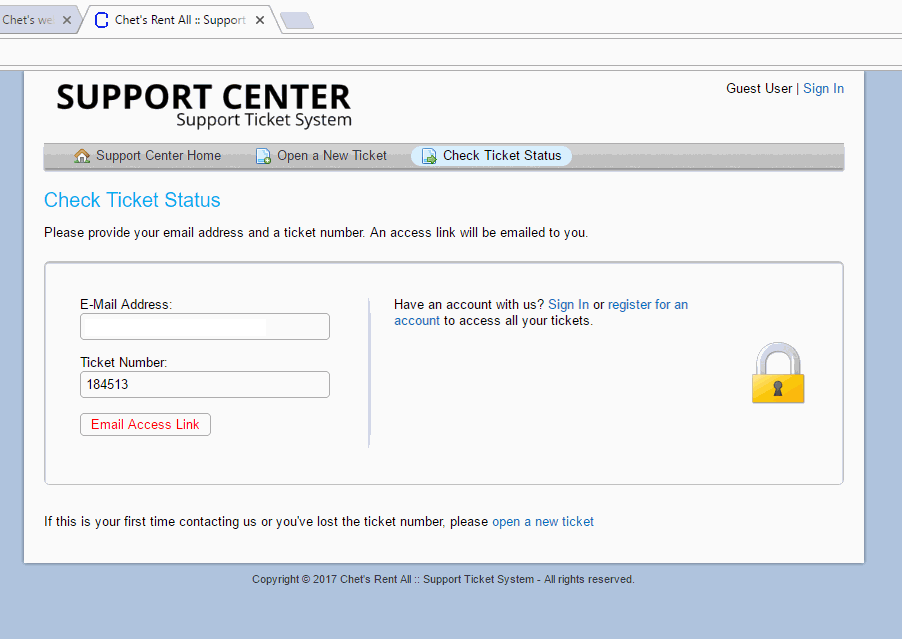
Enter your email address and the ticket number that was emailed to you when the ticket was first created. Click Email Access Link. An email will be sent to you with a link to the ticket.
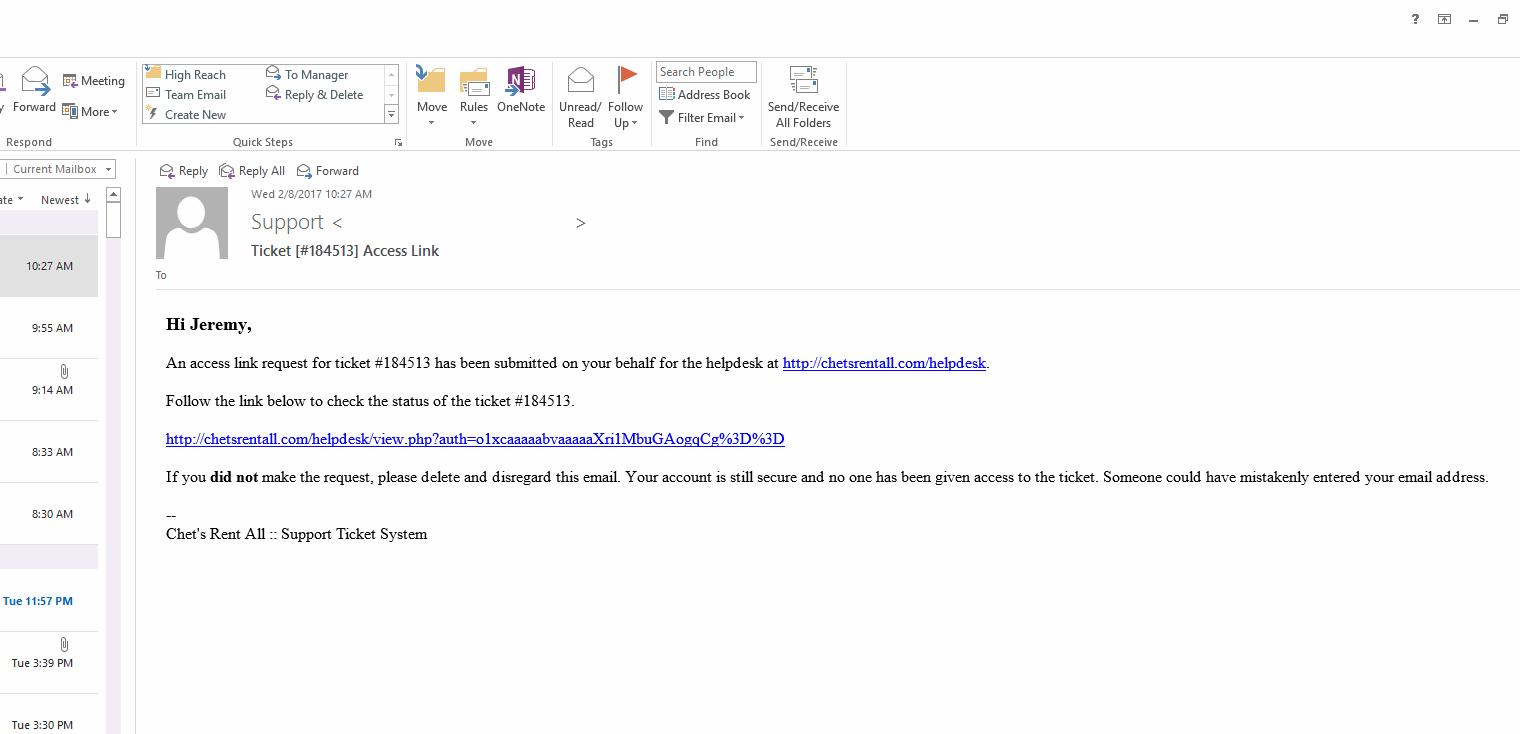
Click the link in the email. This will open the ticket in your web browser where you can see all the notes associated with it.