Runboard
The runboard is used to keep a tally of the items that need to move between the various locations. It would be very easy for things to get missed if the board is not constantly used and updated.
Logging In
Logging in to the runboard is done on the main Employee Portal page.
The Main Page
After logging in you will see your location’s board. This shows you everything that is coming and going from your store. The important information is listed out; From Store, To Store, Category, Item, Description, Date Needed, as well as other info. This page lists the movement types in order of importance with the Rental Runs at the top. Each movement type is then listed in date order with the runs that need to be done the soonest at the top. Clicking on any run text will allow you to edit the run.
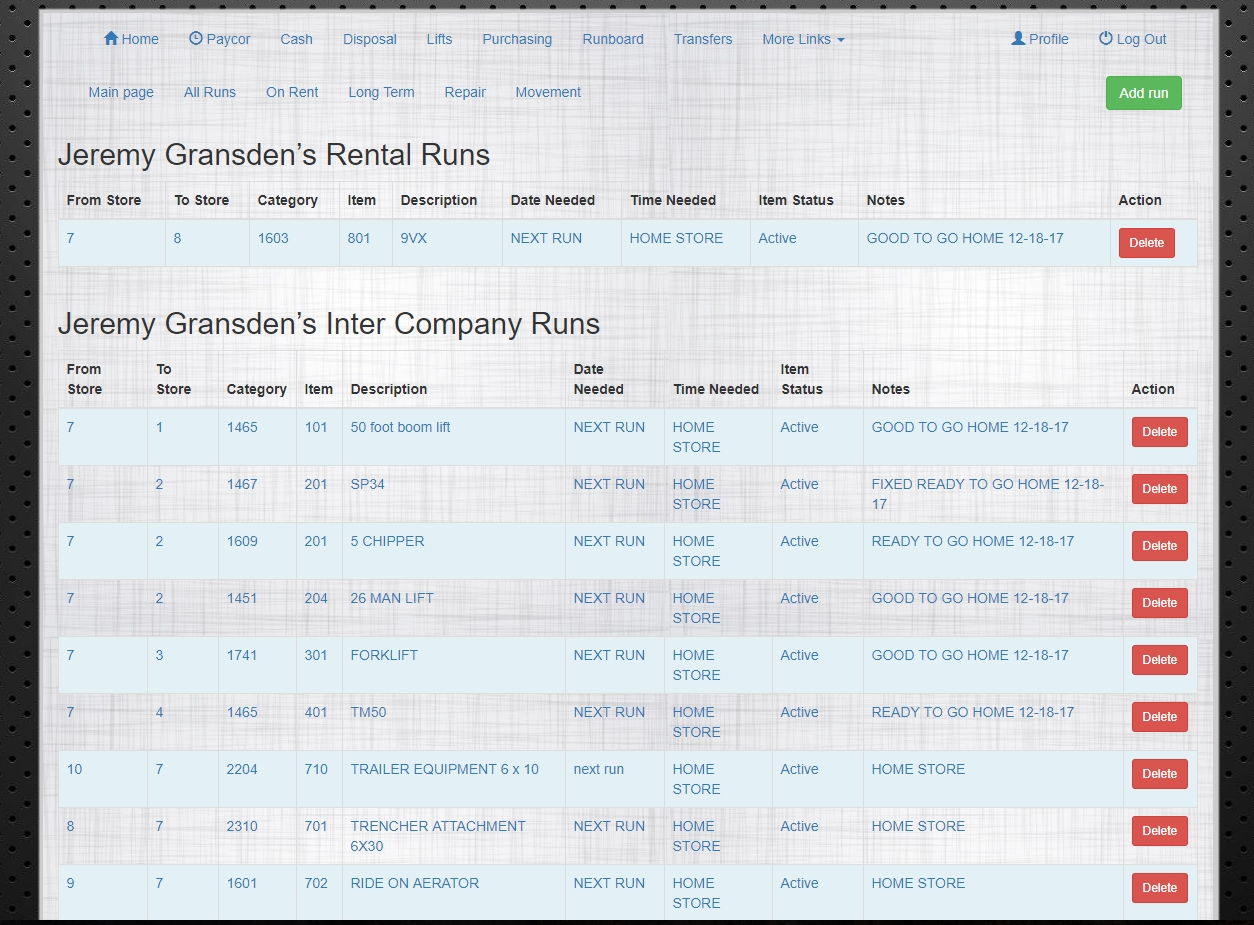
Along the top of the page are links to other pages. They sort the runs in a different manner.
Adding New Runs
On the main page is a button to add new runs.
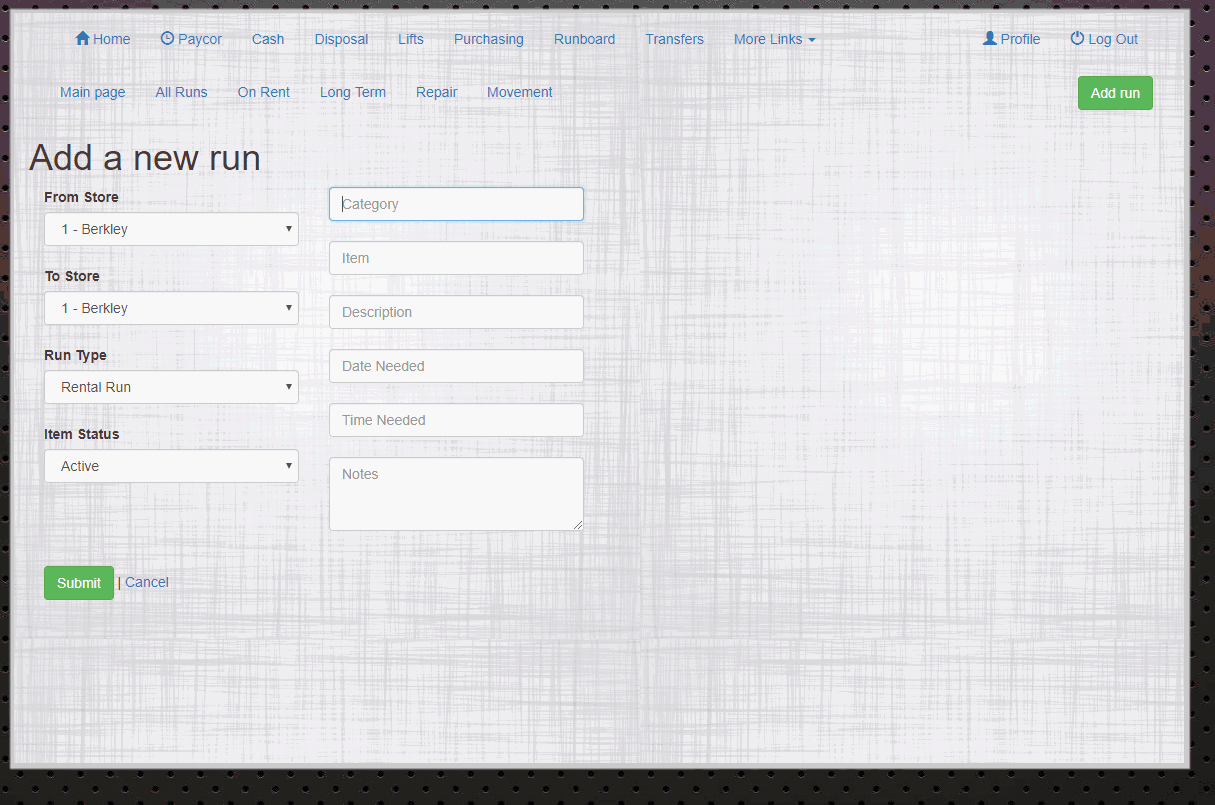
Add in all of the info about the run. be sure to change the defaults for the From Store, To Store, Run Type and Run Status. The Date Needed field has a calender selection aplet that will pop up for you to select your date. Once all the data is entered, press the Add Transaction button and it will be added to the board.
Adding a Inter-Company Parts and Salable Transfers request will also automatically add those items to the runboard. There is no need to add it to the runboard afer filling out a transfer request.
Editing a Run
By clicking on any run in the list, you can edit its details. Clicking will take you to an edit page that has an edit form on it. Change any info and then click the Update Transaction button.
Deleting a Run
On the right side of each run is a button to delete the run. Clicking it will bring up a confirmation button and once clicked it will be removed from the screen.
On Rent, Repair, Long Term
The On Rent, Repair, and Long Term pages show items that have statuses that will not allow them to be moved immediately. These pages can be useful to see what is coming up, what needs to be repaired to move, or what needs to be moved after a rental is over.
Movement
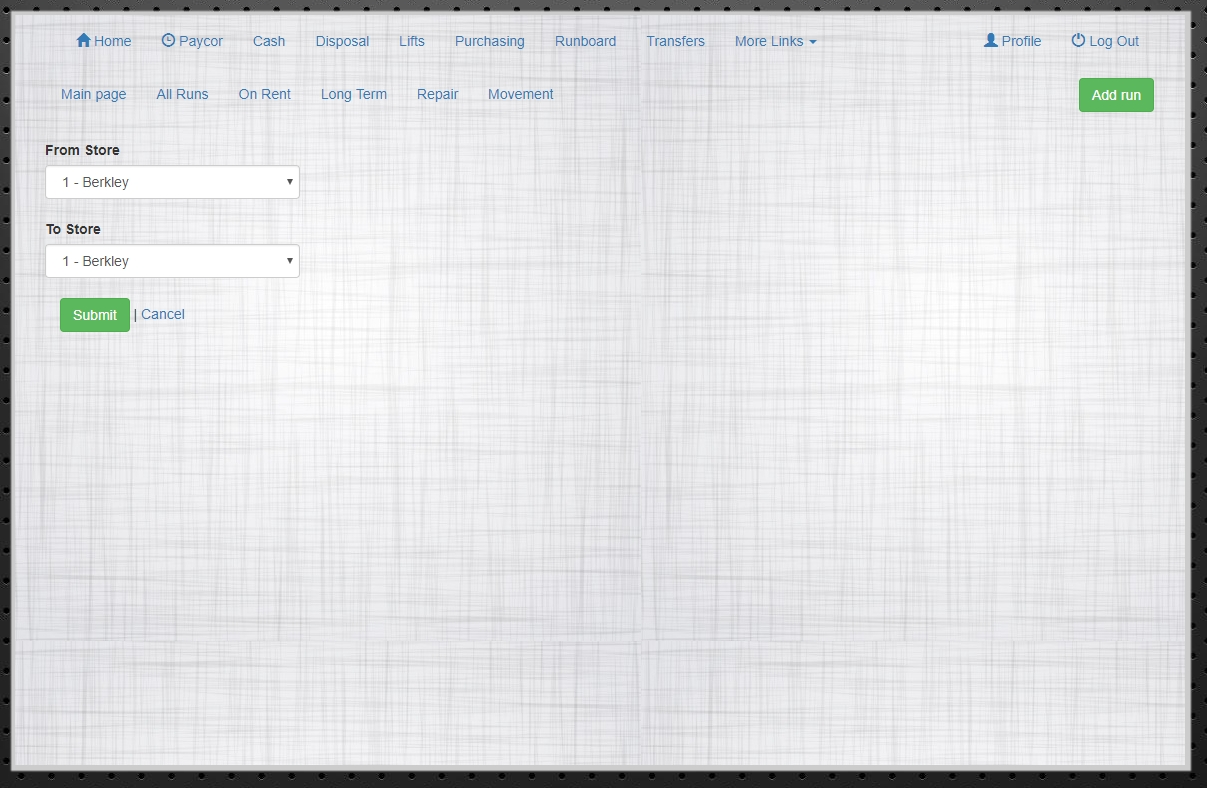
The Movement page will show all items that need to go from the two locations entered in the form.