Inventory Transfers Via S-9-1
With the S-9-1 function it is easy to move inventory between stores. There are a few things to keep in mind when using this function.
Sending Items
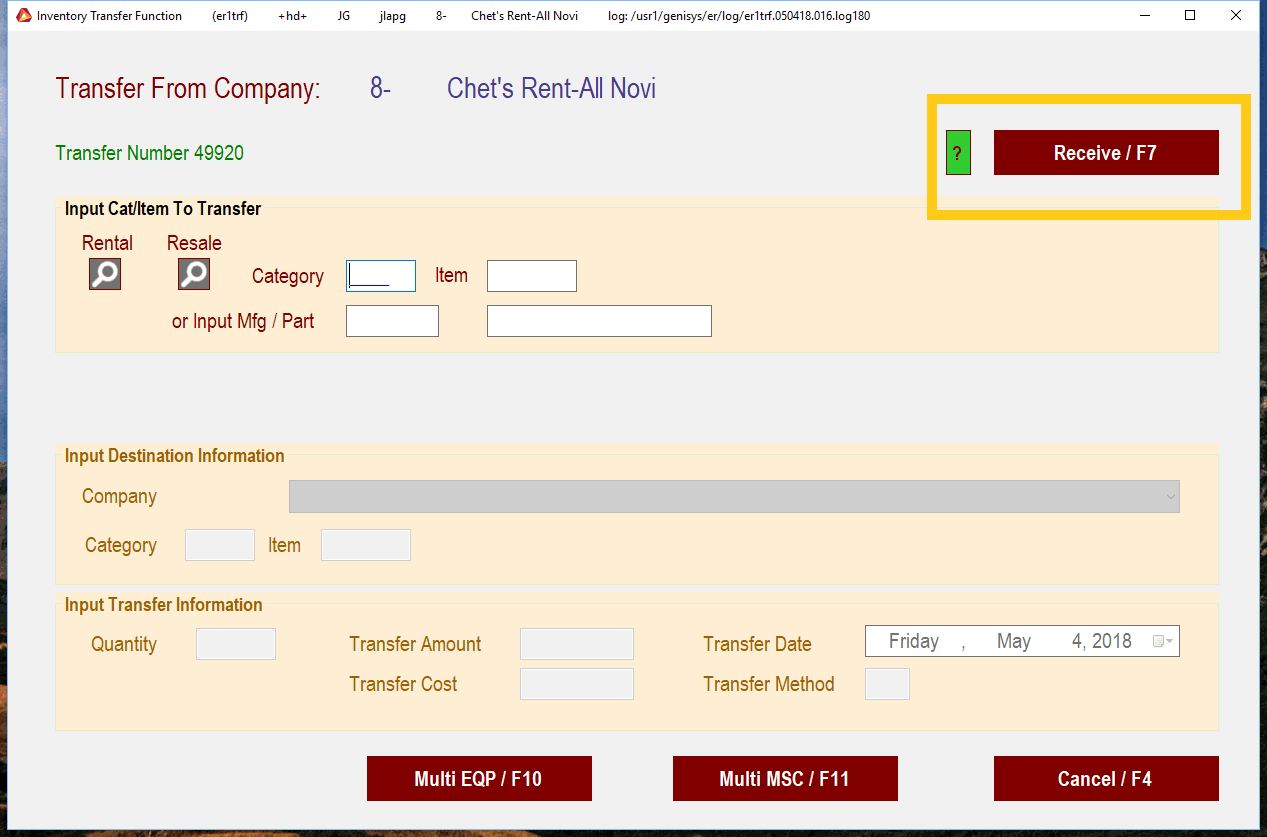
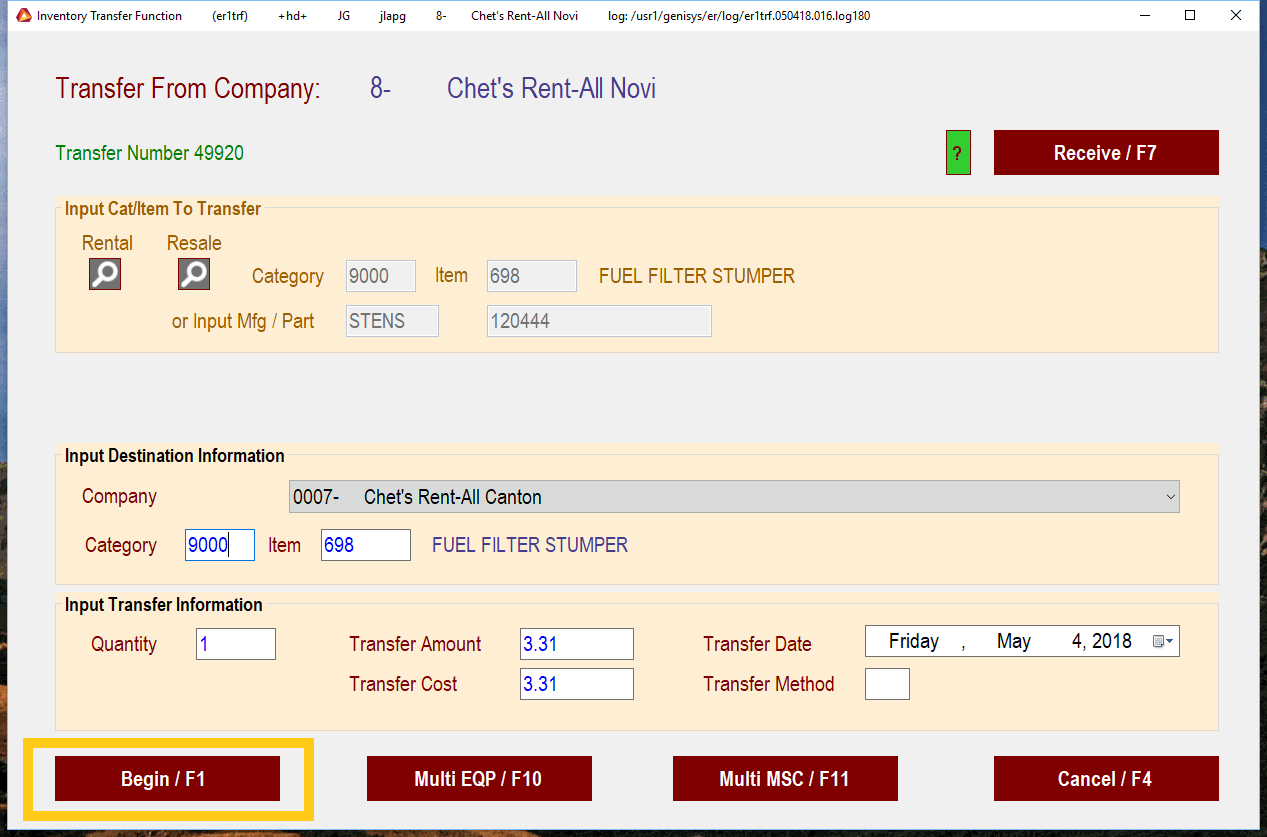
This is the main screen that will be displayed. It allows you to put in the Cat/Itm number, or use the manufacturers part number. You can also search from this screen using the buttons under Rental or Resale.
Note
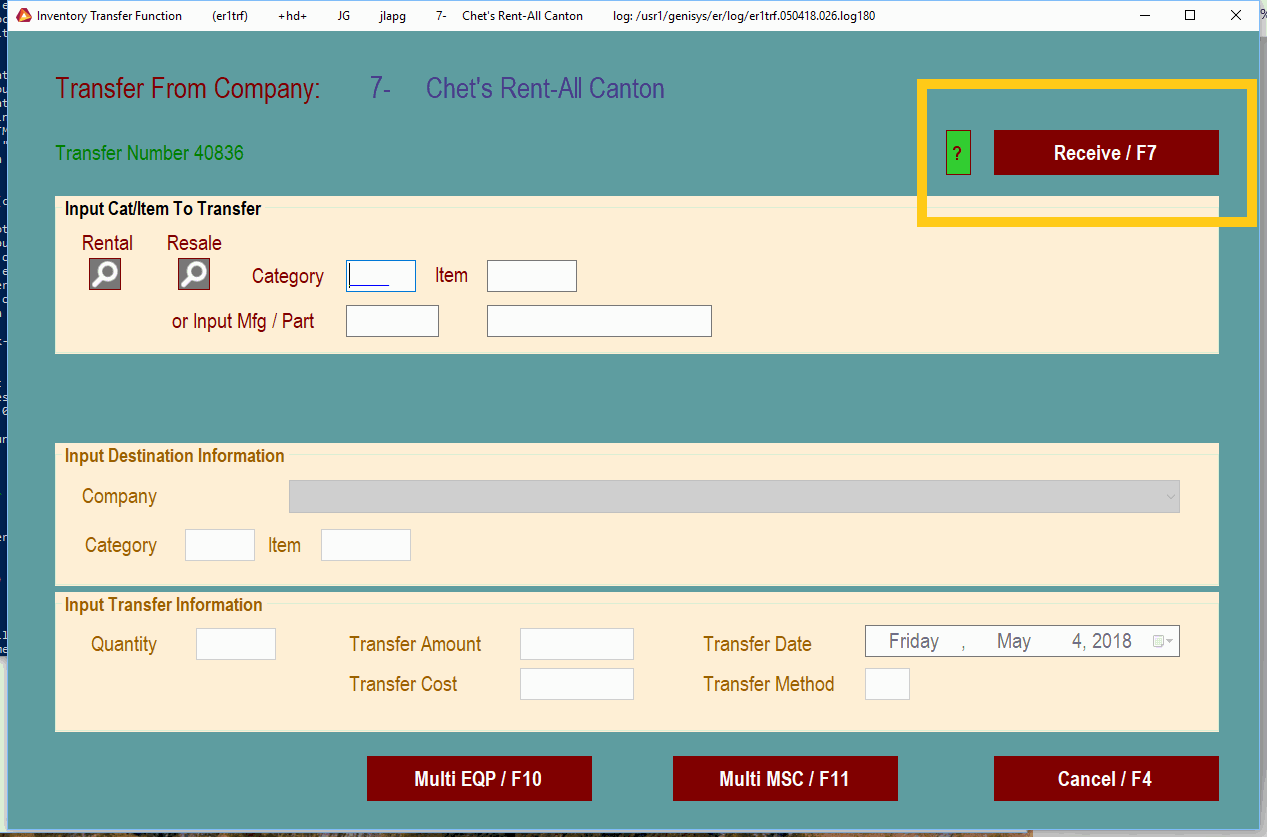
Please notice the new Receive /F7 button.
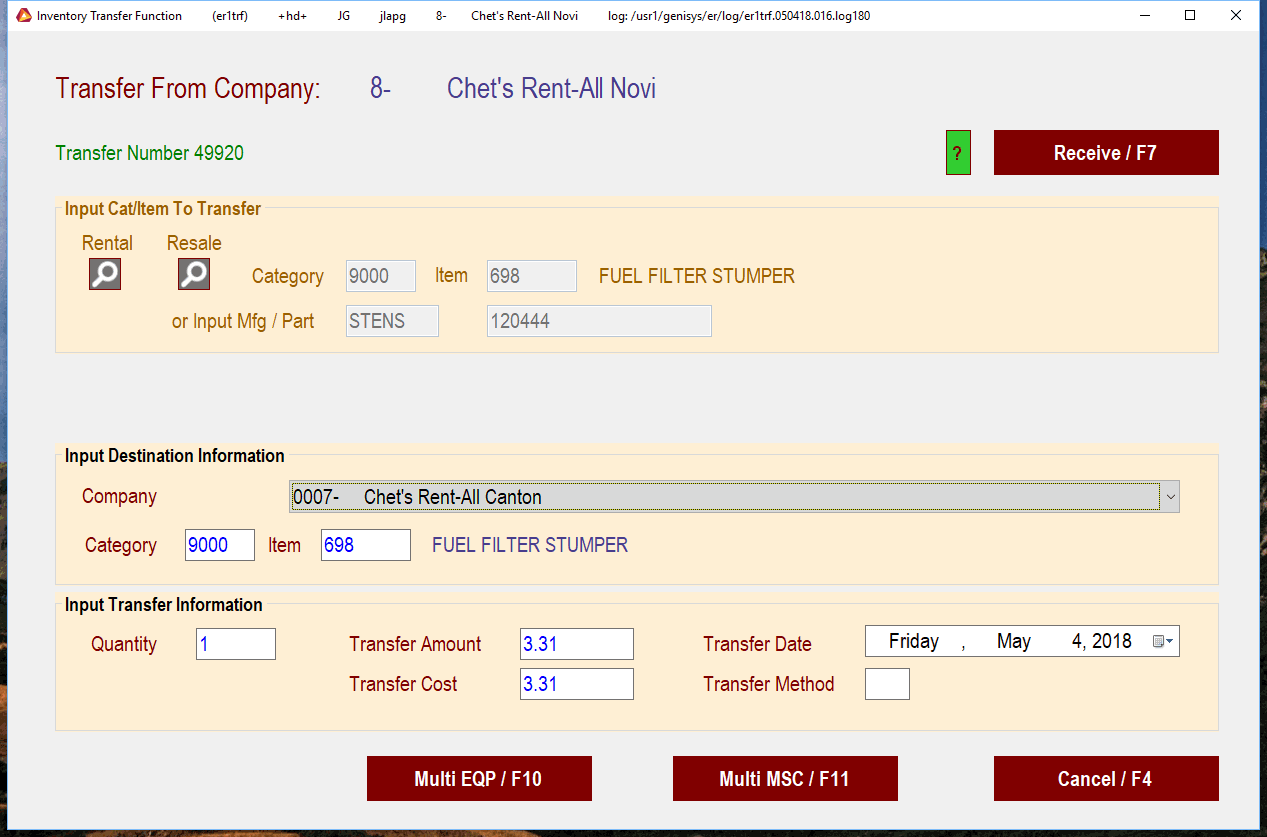
After putting in the item that wish to transfer, you can press the Tab button until you get to the Company field or click on the company drop down menu to select who you will be sending the item to.
Now you can put in the quantity that you wish to transfer.
Note
Be sure that the Transfer Amount and Transfer Cost fields are populated. This is very important.
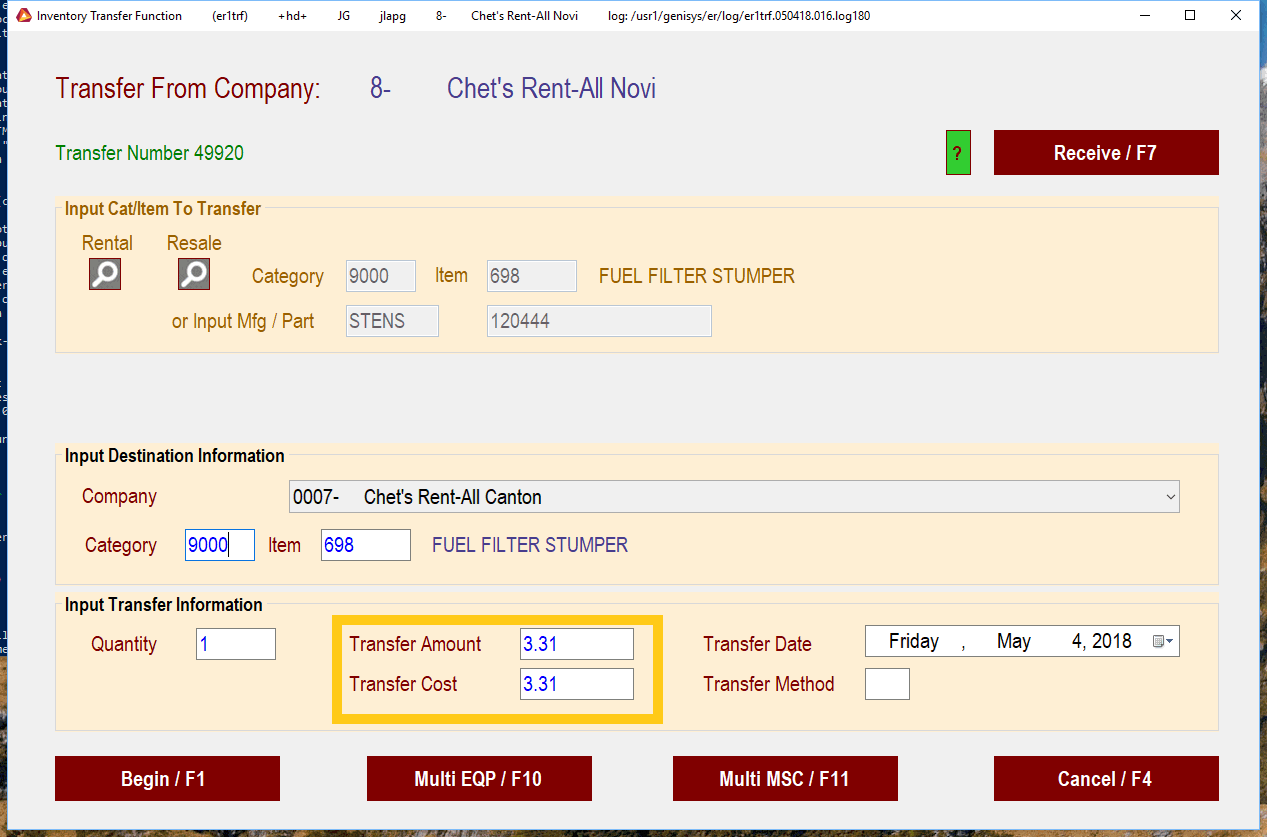
Once all fields have been properly filled in, you may press the Begin / F1 button.
Receiving Items
All parts and resale items sent must be received in the S-9-1 routine when the item are physically received by the store. The items received should be checked against the paperwork that is sent with any transfer. Once those items are checked, and any discrepancies noted, you can receive them in the system and they will show up in your inventory.
Click on the Receive /F7 button.
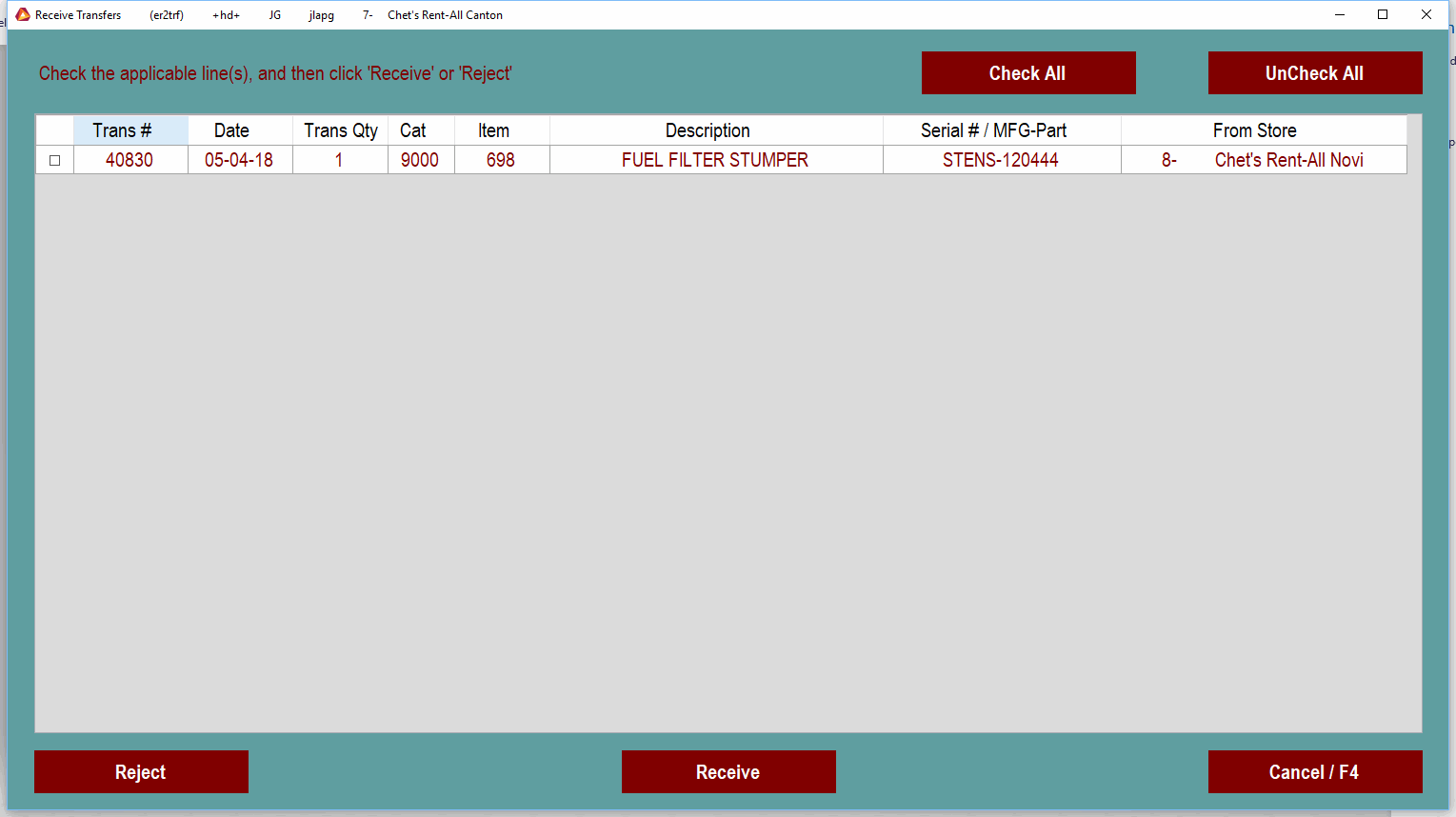
This will bring up a list of the items that are comming to your store to be received.
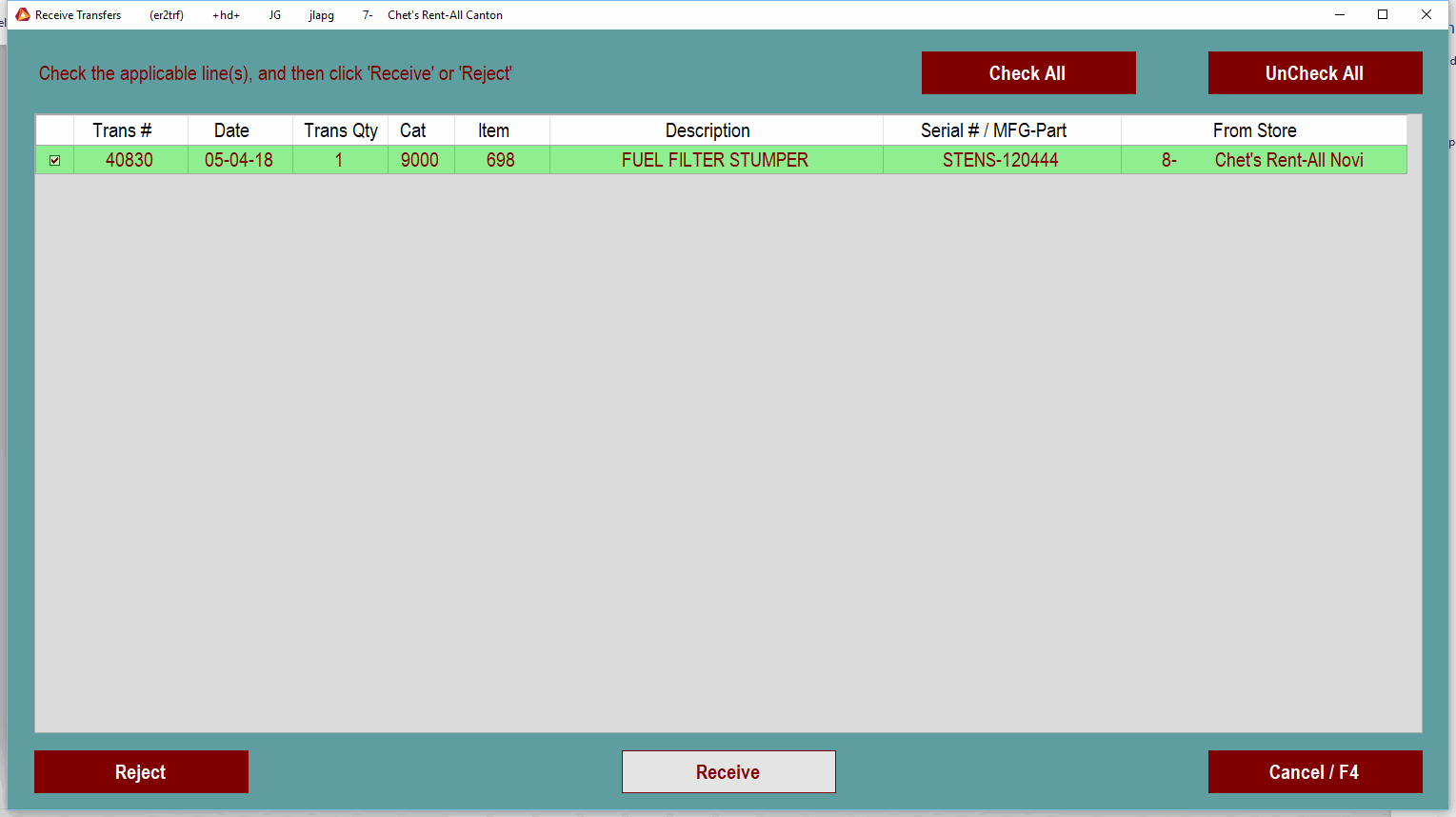
Select the parts that you wish to receive and click the receive button.
The system will ask you to confirm that you want to receive the items and then will give you an option to print a transfer listing of the part.