Credit Card Processing
Credit card processing will now be handled in the AlphaRent system.
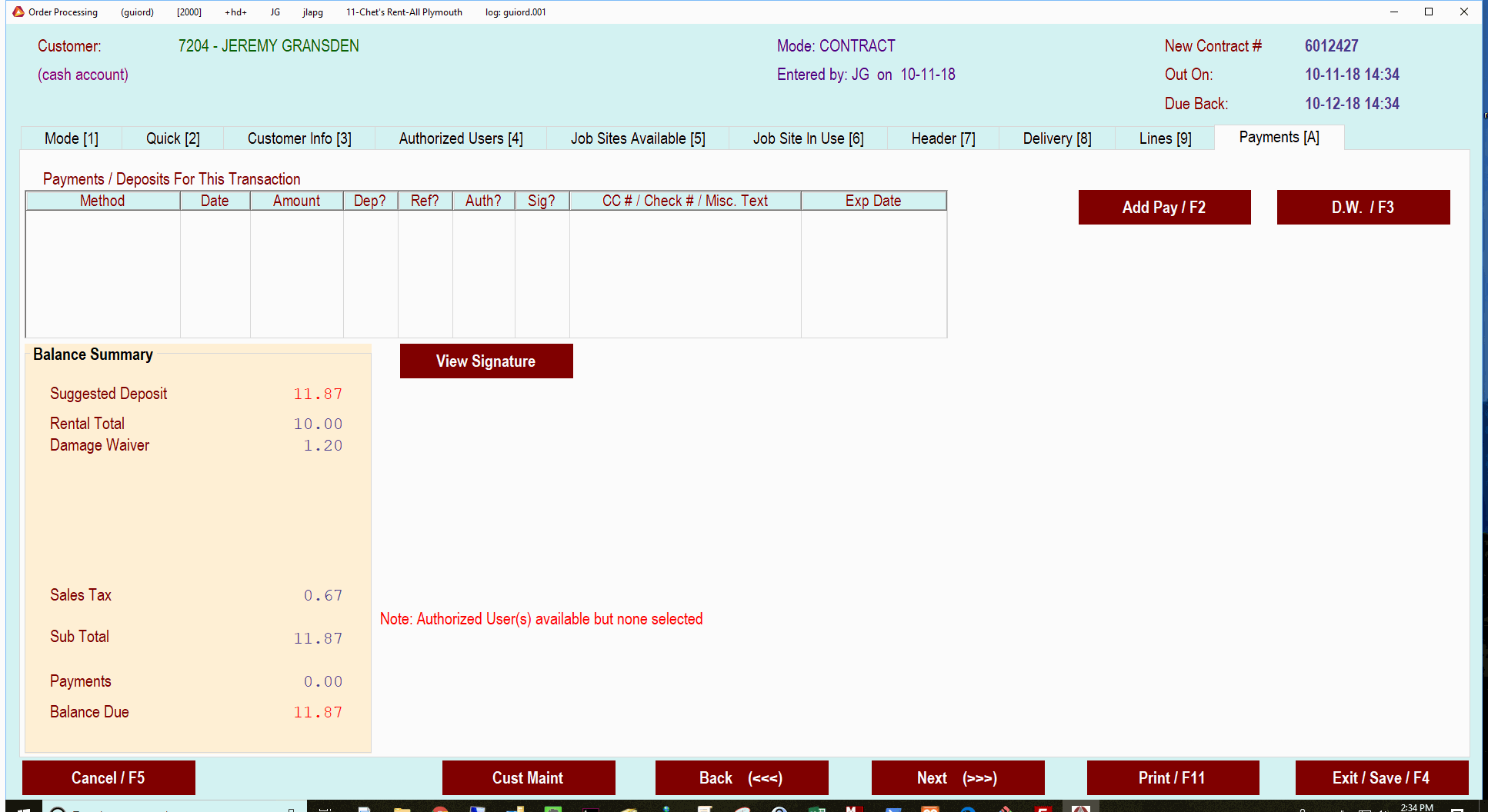
On the payment screen of a contract, reservation or inventory sale, select Add Pay / F2
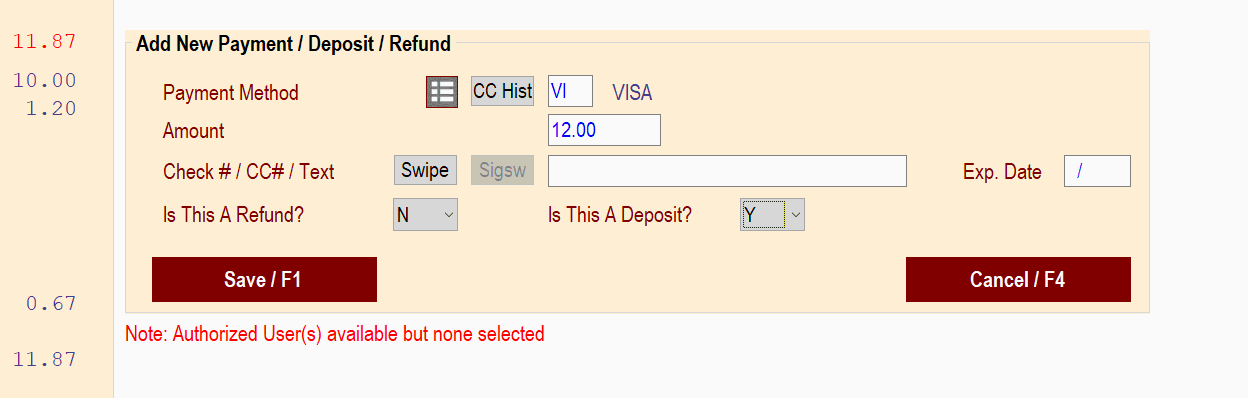
This will open up the section to add payment information. Input the credit card type in the Payment Method box. Enter the amout that you want to charge to the card in the Amount box.
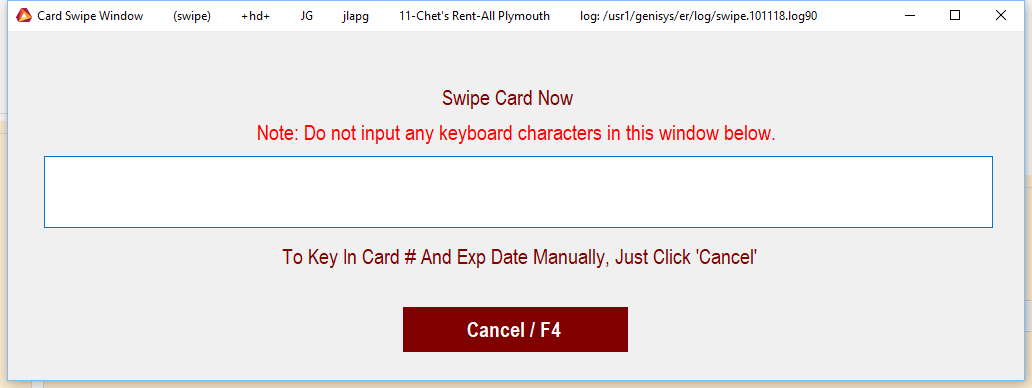
On all credit card transactions the Swipe button will be available. You can press the swipe button and then swipe the customers credit card through the card reader that is attached to your keyboard/monitor. Be sure that the magnetic stripe is facing you or the reader will not read the information.
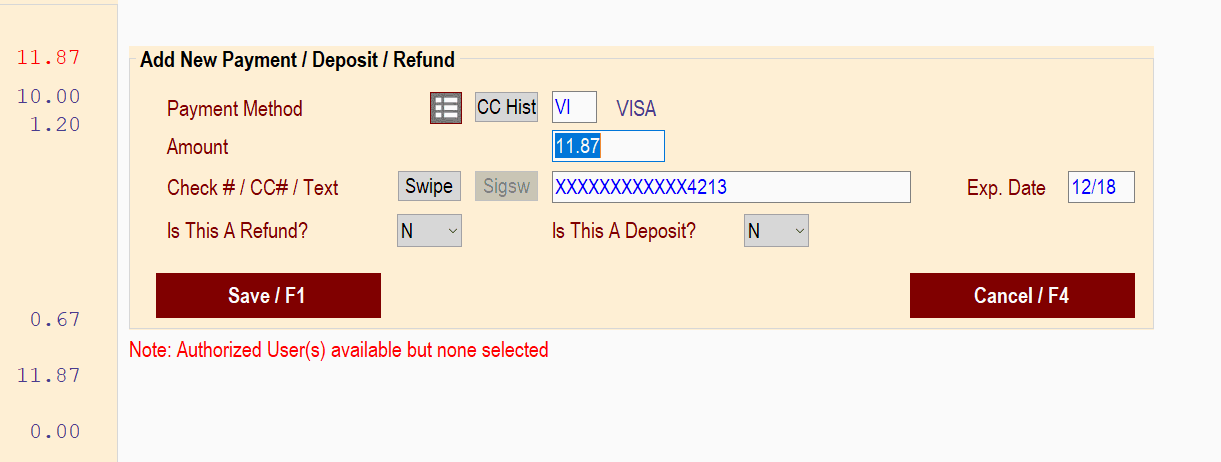
This will enter the customers credit card info into the system for charging. On the next screen make sure that all the info is correct and press Save / F1
A credit card details page will open. Here you will verify that the billing address is correct as well as inputting the CVV number from the back of the card.
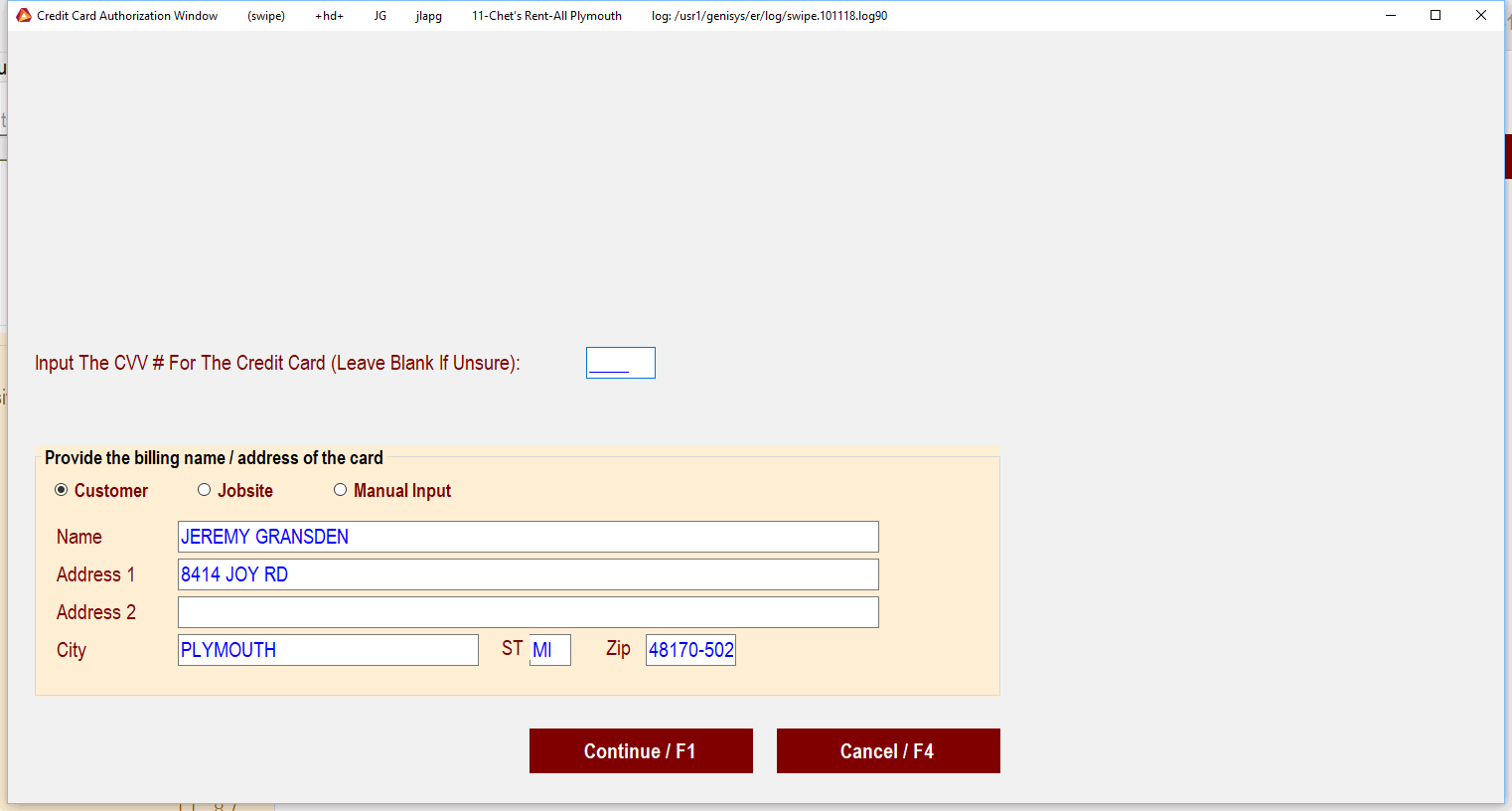
Once this info is entered or verified, Click Continue / F1. The card will now be charged the amount that you put in on the previous page. A status page will come up alerting you to the success or failure of the charge/refund.
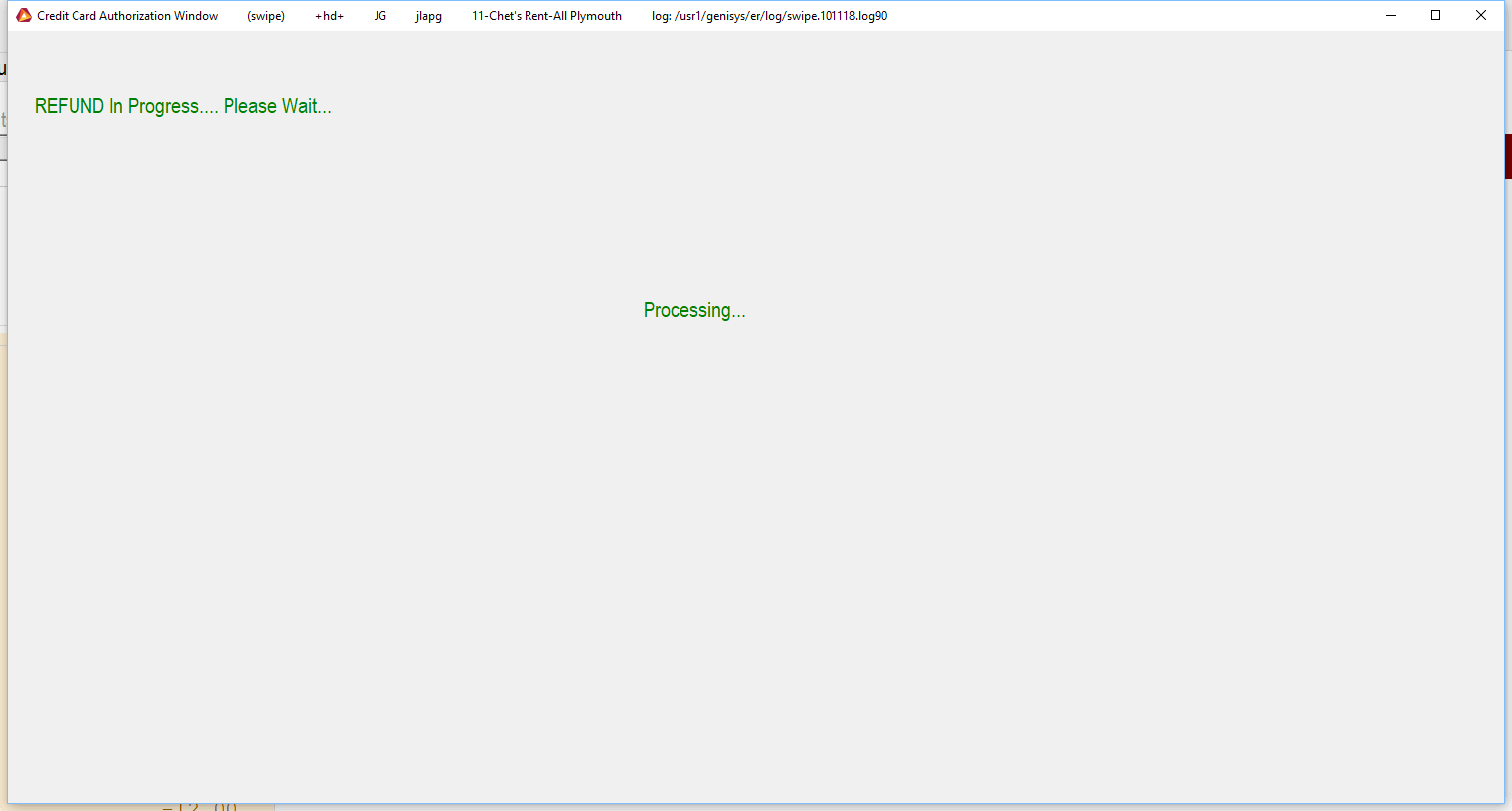
If the transation is a success the system will send you back to the payment screen where you can then print your contract/reservation or click finish for a receipt on a return or inventory sale.
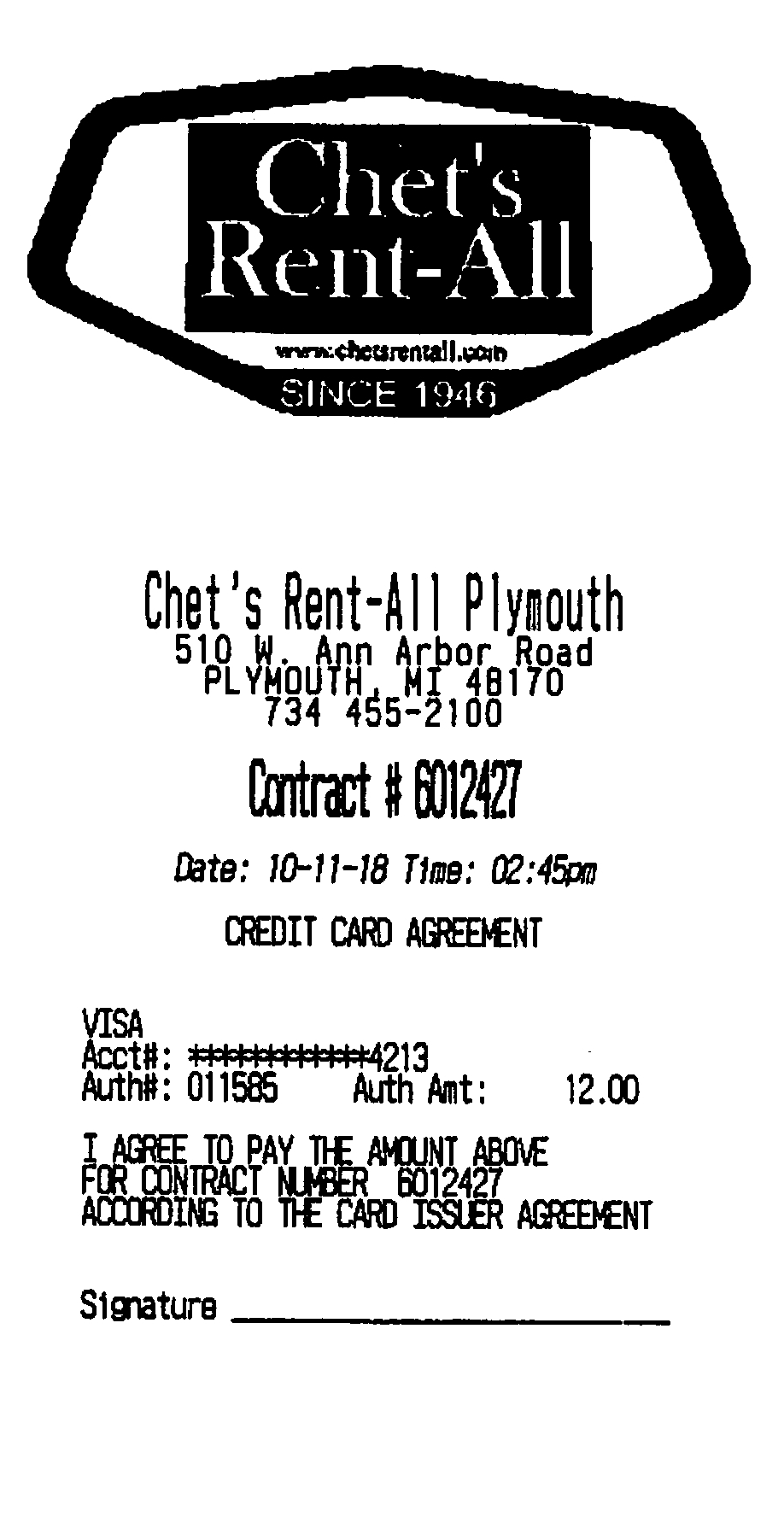
When charging a card or issuing a refund the system will print a credit card receipt on your receipt printer. This receipt needs to be signed by the customer and kept with the contract/reservation/sale paperwork
When issuing a refund on a return you can select a previously used credit card. On the payment screen of a return press Add Pay / F2 button. Make sure that the correct amount is listed in the Amount box (this should be a negative number) and the Is This A Refund? box has a y in it.
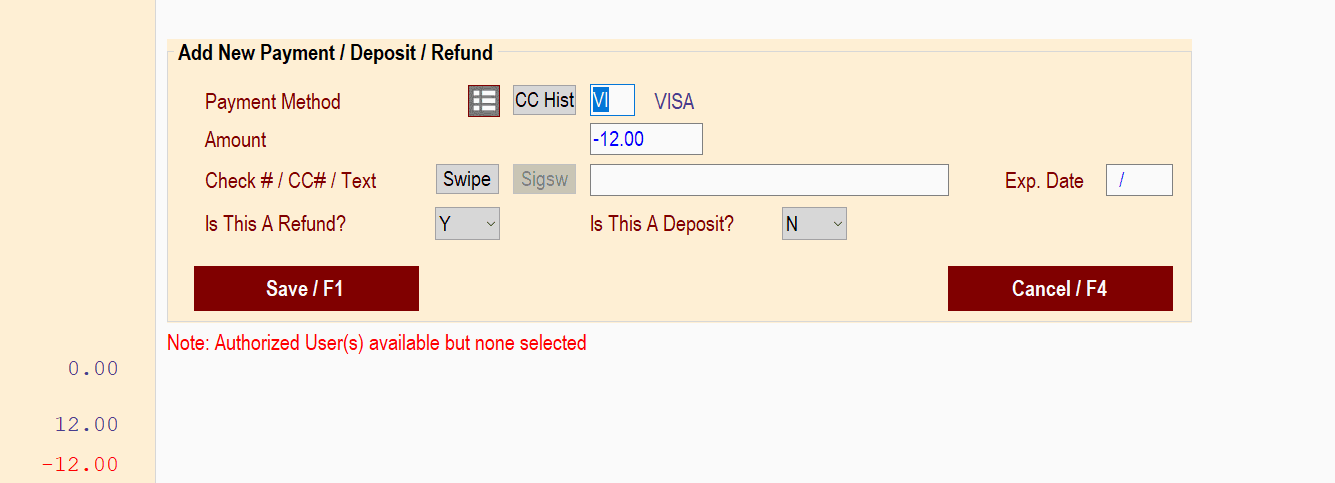
You can then press the CC Hist button and bring up a list of the credit card used on a previous transaction
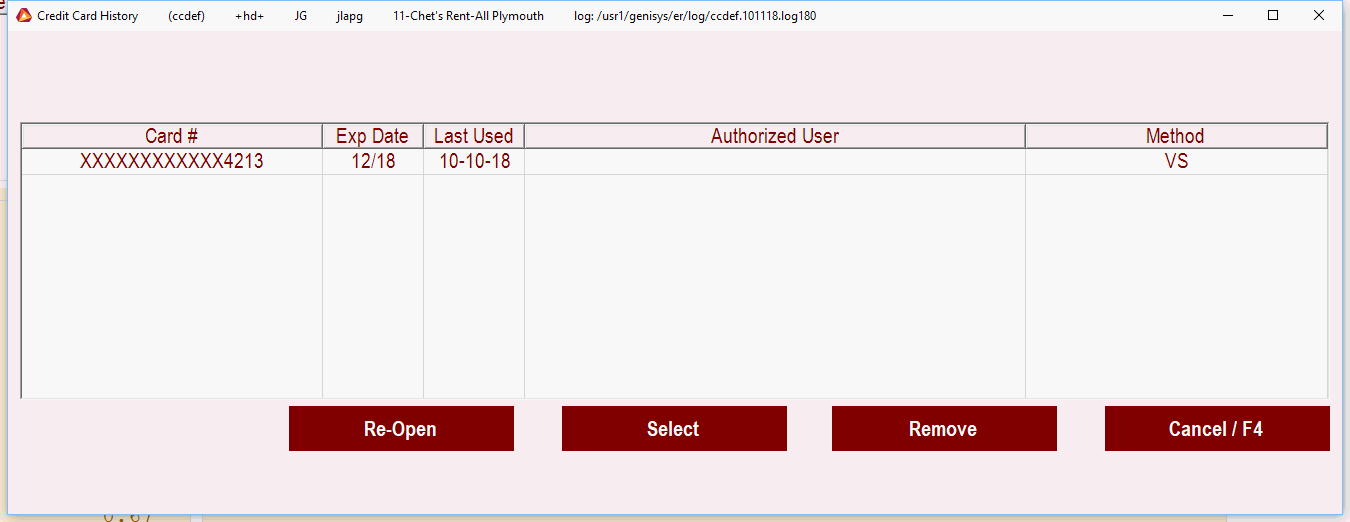
Double click on the credit card that you want to process the return on. This will fill in the credit card info to be used for the return. The system will then follow the same process as a charge to issue a return. You can also use the swipe method if you prefer.
If the charge and refund happen on the same day you must refund the entire deposit first. Then charge the actual amount owed. The system will do a void on the original charge so the customer will only see the actual amount charged on their credit card statement. This is only for transactions that happen same day